How to Design a Checkout Flow That Converts
A complete guide to designing high-converting checkout flows. Learn from real examples by Shopify, Amazon, and Apple — with data-backed UX best practices and common pitfalls to avoid.

The Cost of Bad Checkout Design
The average cart abandonment rate across e-commerce is a staggering 70.19% — according to Baymard Institute's meta-analysis of 49 different studies. That means roughly 7 out of 10 users who add items to their cart leave without completing the purchase.
While some abandonment is inevitable (comparison shopping, price sensitivity, "just browsing"), a significant portion is caused by fixable UX problems. Baymard's checkout usability research found these top abandonment reasons:
- 48% — Extra costs (shipping, tax) were too high
- 26% — Required account creation before checkout
- 25% — Checkout was too long or complicated
- 18% — Couldn't see total cost upfront
- 17% — Didn't trust the site with payment info
At least 3 of those 5 reasons are design problems that can be fixed. Here's how.
Step 1: Minimize the Number of Steps
Every additional step in your checkout is a potential drop-off point. The highest-converting checkout flows consist of 3-4 steps maximum:
- Cart review — items, quantities, totals, and promo code input
- Shipping/delivery info — address, shipping method selection
- Payment — card details (or express payment), billing address
- Confirmation — order summary, receipt, and next steps
Single-page vs multi-step: which is better?
Both can work well. Shopify's one-page checkout reduced checkout time by 13% when they launched it in 2023. But Amazon's multi-step flow (with 1-Click for returning users) converts at industry-leading rates.
The key insight from Baymard's research: it's not the number of pages that matters — it's the total number of form fields. The average checkout has 11.3 form fields, but the optimal number is 6-8. Every field you remove measurably increases completion.
Step 2: Guest Checkout is Non-Negotiable
Forcing account creation before checkout is the #2 reason users abandon carts (26% abandonment rate). Yet Baymard found that 24% of e-commerce sites still don't offer guest checkout in 2024.
The recommended pattern:
- Default to guest checkout — don't even show a "Create account" option until after payment
- Offer account creation as an optional post-purchase step: "Create an account to track your order"
- Frame it as a benefit, not a chore: a single "Save my info for faster checkout next time" checkbox
- If you must ask for registration, use social sign-in (Apple/Google) — it's one tap, not a form
Step 3: Smart Form Design
The checkout form is where most friction occurs. Here's how to design forms that help rather than hinder:
Auto-Fill Everything Possible
- Use HTML
autocompleteattributes on every field —autocomplete="shipping address-line1",autocomplete="cc-number", etc. - Support Apple Pay / Google Pay for true one-tap checkout — these bypass the entire form
- Pre-fill city and state from ZIP code — this eliminates 2 fields with a single API call (use a service like Zippopotam.us or Google's Geocoding API)
Use Appropriate Input Types
These small HTML details have an outsized impact on mobile usability:
type="email"for email fields → keyboard shows @ symboltype="tel"for phone numbers → numeric keypad with formattinginputmode="numeric"for card numbers and ZIP codes → clean numeric keyboard without phone formattingautocomplete="cc-number"→ triggers native card scanning on iOS/Android
Real-Time Validation
- Validate fields on blur (when the user leaves the field) — not on submit, and not while they're still typing
- Show inline error messages positioned directly below the relevant field — never a list at the top of the page
- Format credit card numbers automatically as users type (4444 3333 2222 1111) — this mirrors the physical card and helps users verify
- Auto-detect card type from the first digits (4xxx = Visa, 5xxx = Mastercard) and show the matching card icon
Reduce the Number of Fields
Every field you remove increases conversion. Question every single input:
- Combine first name and last name into a single "Full name" field
- Auto-detect country from the user's IP or browser locale
- Make phone number optional unless it's required for delivery coordination
- If shipping and billing addresses are usually the same, use a "Same as shipping" checkbox (default checked)
Step 4: Show a Clear Order Summary
Keep a persistent order summary visible throughout the checkout process:
- Item thumbnails with names, quantities, and prices — users need to verify what they're buying
- Line items for subtotal, shipping, tax, and discount — transparency prevents the #1 abandonment reason (unexpected costs)
- A prominent total that updates in real-time as shipping method or promo codes change
- Promo code input near the total — not buried in a drawer or hidden behind a link. However, don't make it visually dominant (users without a code feel like they're missing out)
On mobile: Use a collapsible order summary at the top of the screen that expands on tap. Show the total prominently even when collapsed.
Step 5: Trust Signals and Security
Users must feel safe entering payment information. According to Baymard's research, 18% of users abandon checkout because they don't trust the site with their card info. Here's what builds trust:
- SSL lock icon near the payment form (though browsers now handle this visually)
- Payment provider logos (Visa, Mastercard, Amex, PayPal, Apple Pay) — familiarity breeds trust
- Money-back guarantee badge displayed near the CTA button
- Clear privacy statement link near the email field: "We'll never share your info"
- Recognized trust badges — Norton Secured, Stripe Verified, or your payment processor's badge
Design detail: The placement of trust signals matters. Displaying a lock icon directly on the payment form container (not in the footer) increases perceived security by 42% according to Baymard's eye-tracking studies.
Step 6: Mobile-Optimized Checkout
Mobile accounts for over 60% of global e-commerce traffic (Statista, 2024), yet mobile checkout completion rates are significantly lower than desktop. The checkout must be designed mobile-first:
- Large tap targets — minimum 44x44px per Apple's HIG and 48x48dp per Material Design
- Bottom-anchored CTA button — "Pay $49.99" should be visible without scrolling, always
- Numeric keyboards for card, CVV, and ZIP fields via
inputmode="numeric" - Stacked layout — never place form fields side-by-side on mobile. Single column only
- Auto-scroll to the next field after completion — reduce thumb travel
Step 7: Efficient Error Recovery
When something goes wrong (declined card, invalid address, network error), help users recover immediately:
- Highlight the specific field with an error — don't just show a generic red banner
- Provide clear, human-readable error messages: "Your card was declined. Try a different card or contact your bank" — not "Error code: CARD_DECLINED_INSUFFICIENT_FUNDS"
- Never clear all form fields on error — preserve every piece of entered data. Re-entering an entire form after a single error is infuriating
- Offer alternative payment methods if a card is declined — "Try PayPal instead?"
Step 8: The Confirmation Page
The confirmation page is the last touchpoint in the checkout flow — don't waste it:
- Show a clear "Order Confirmed ✓" message with a prominent order number
- Provide an estimated delivery date — "Expected delivery: April 18–20"
- Include "Continue Shopping" and "Track Order" CTAs
- Display a post-purchase survey or suggest related products (but don't overwhelm)
- Send an immediate confirmation email — transactional emails have an 85% open rate
4 High-Converting Checkout Patterns
The Progress Indicator
Show "Step 1 of 3" or a horizontal progress bar. According to NNGroup, users are more likely to complete a multi-step process when they can see how far they've come and how much remains.
The Sticky CTA
On mobile, keep the primary action button visible at all times. A sticky bottom bar showing the total amount and a "Place Order" button eliminates the need to scroll down before committing.
Express Checkout
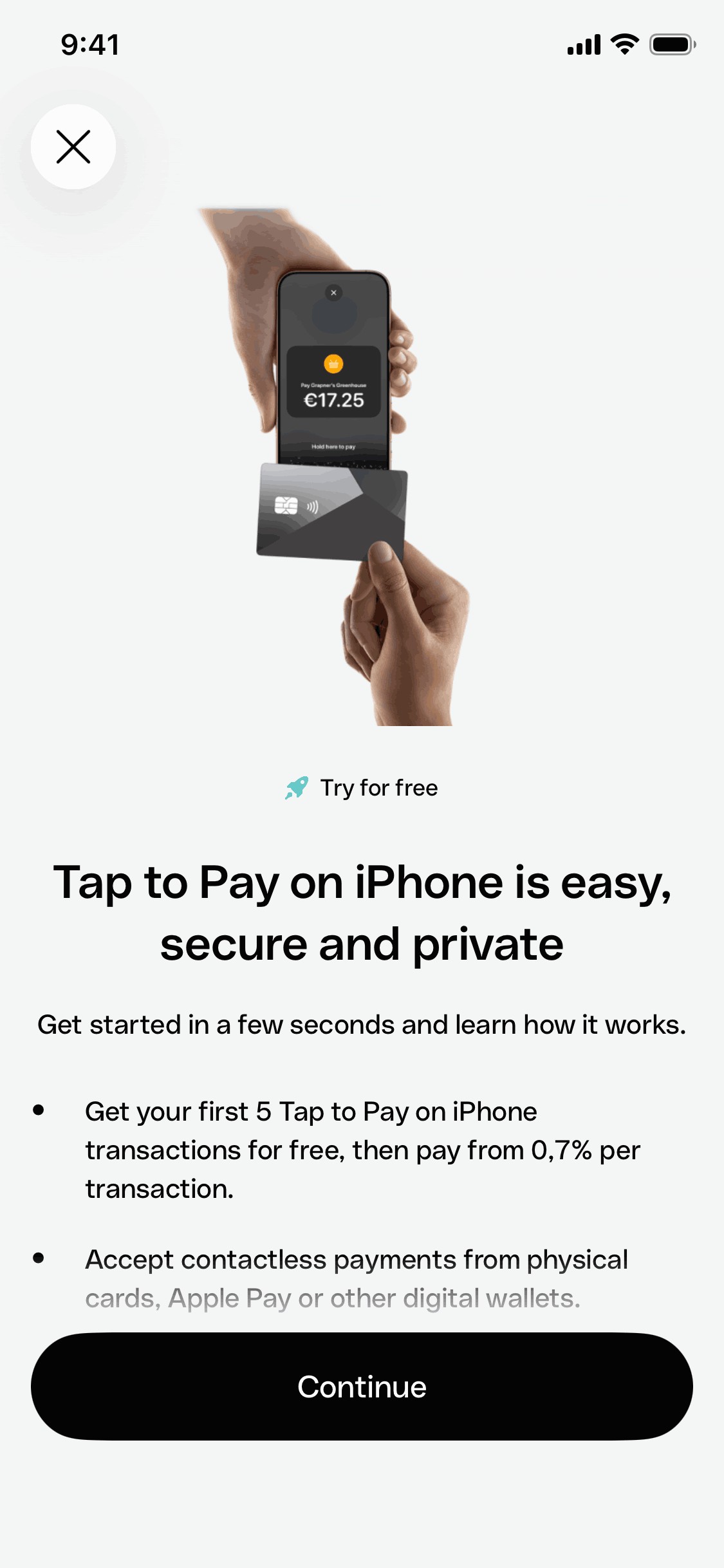
Apple Pay, Google Pay, and Shop Pay can reduce the entire checkout to a single tap. Show these options prominently — above the traditional form, not below it. Shopify reports that express checkout converts at nearly 2x the rate of traditional form-based checkout.
Saved Payment Methods
For returning users, pre-select their saved card and show the last 4 digits. Let them complete checkout in 2 taps: verify card → place order. Amazon's legendary 1-Click ordering is the gold standard here.
5 Real-World Checkout Flows Worth Studying
- Shopify — Clean one-page checkout with express payment options at the top, guest checkout default, smart address autocomplete
- Amazon — 1-Click ordering for returning customers, saved addresses and payment methods, aggressive friction reduction
- Stripe — Developer-embedded hosted checkout with built-in compliance, localized payment methods, and sub-second load times
- Uber Eats — One-tap re-order with saved payment and delivery address, minimal steps from cart to kitchen
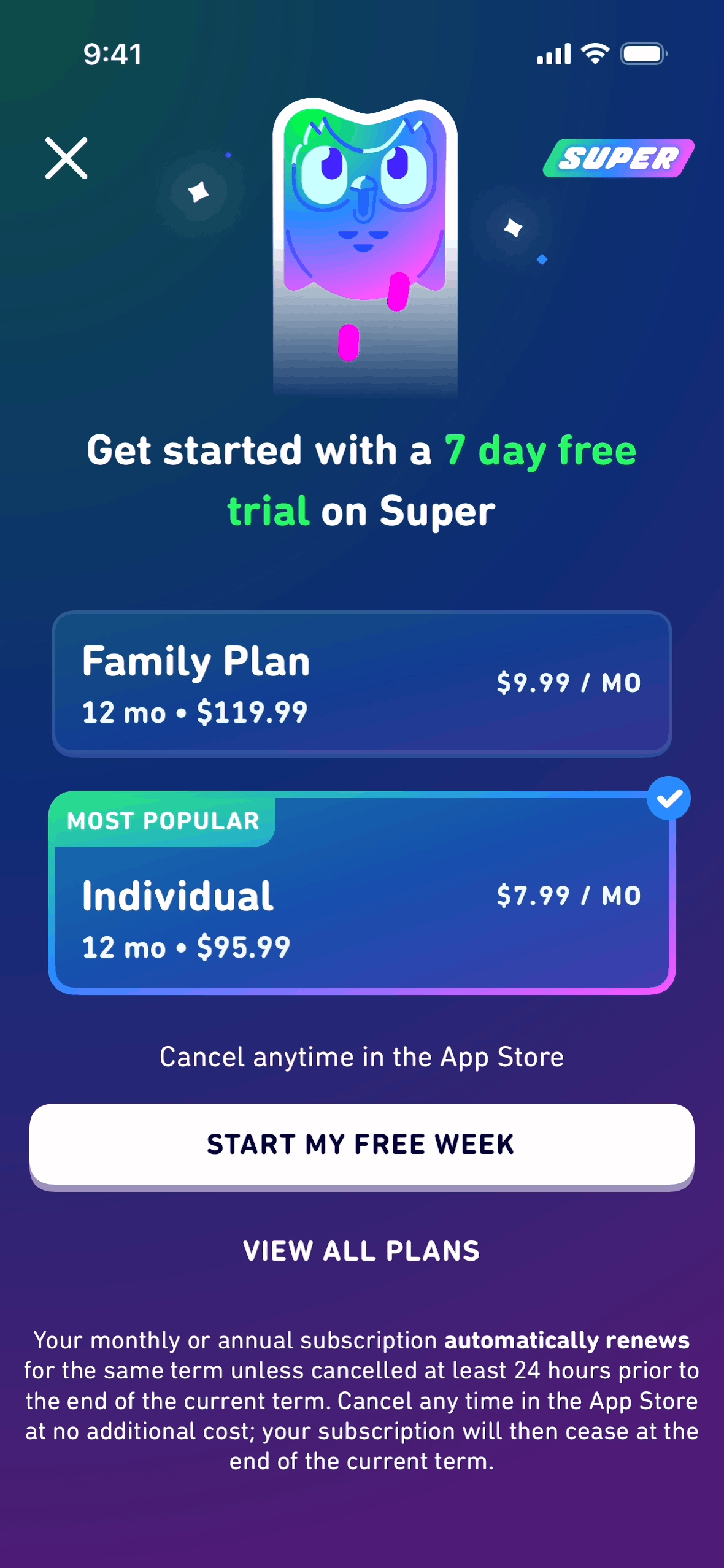
- Canva — SaaS subscription checkout with annual/monthly toggle, trust signals, and clear refund policy
Browse more checkout flow designs in Gummble's curated library — see real screenshots from these apps and hundreds more.
Key Metrics to Track
To measure whether your checkout is performing well:
| Metric | What It Measures | Good Benchmark |
|---|---|---|
| Cart-to-checkout rate | % who start checkout after adding to cart | 40-60% |
| Checkout completion rate | % who complete after starting checkout | 45-55% |
| Payment success rate | % of transactions that process successfully | 95%+ |
| Time to complete | Average seconds from cart to confirmation | Under 120 seconds |
| Guest checkout usage | % of orders placed without account | 40-60% |
Get Checkout Design Inspiration
Designing a checkout flow? Browse Gummble's checkout pattern library for screenshots and flows from hundreds of real e-commerce and SaaS apps.
Related reads: SaaS pricing page inspiration · Top onboarding designs · Login screen trends
Founder of Gummble. I build and maintain the Gummble catalog — UI screenshots and UX flows from 1,500+ real iOS, Android, and web apps — and write about the design patterns I see across them.
See these patterns in action
Browse 1,500+ apps across shipped iOS, Android, and web products.
Browse the Library →