Mobile App Login Screen Design Trends for 2026
Explore the latest login screen design trends shaping mobile apps in 2026. From passkeys to biometric-first auth, learn what top apps are doing to make authentication seamless and secure.

The State of Login Design in 2026
Login screens have evolved dramatically from the simple username/password forms of a decade ago. Today they're sophisticated experiences that balance security, convenience, and brand expression — and they need to do it all in under 5 seconds.
According to the FIDO Alliance's 2024 Online Authentication Barometer, over 60% of users have abandoned a purchase or account signup because they forgot their password or found login too frustrating. The login screen isn't just a gate — it's a conversion event.
After analyzing hundreds of login screens in our pattern library, here are the 8 major trends shaping authentication design this year.
Trend 1: Biometric-First Authentication
Face ID and Touch ID have become the default expectation for returning users on iOS. The best login screens make biometric auth the primary option, with password as a fallback rather than the other way around.
The design pattern in practice:
- Auto-trigger biometric prompt on app launch (no tap required)
- Show a large Face ID / fingerprint icon as the primary UI element
- Display "Welcome back, [Name]" with the user's avatar — personalization reduces friction
- Offer "Use Password" as a clearly visible but secondary option below
Apps doing it exceptionally well: Fintech apps like Revolut, Mercury, and YNAB all treat biometric auth as the primary path — with security framed as a feature, not a barrier.
Implementation detail: On iOS, use the LAContext API with evaluatePolicy(.deviceOwnerAuthenticationWithBiometrics) and always provide a fallback policy. Never assume biometric hardware exists — graceful degradation to password is mandatory.
Trend 2: Social Sign-In as the Primary Path
"Sign in with Google" and "Sign in with Apple" now account for a significant majority of new account registrations in consumer apps. The 2026 design trend is clear: social sign-in buttons go at the top, above email/password.
Best practices from top implementations:
- Place social buttons at the top of the screen — the old pattern of burying them below email fields is dead
- Follow platform guidelines for button styling — Apple mandates specific button designs, and Google has updated theirs for 2025
- Show at most 3 social providers — Google + Apple are near-universal. Add one more (GitHub for dev tools, Microsoft for enterprise) only if your audience demands it
- Add a clear divider: "or continue with email" separates social from traditional auth
Regulatory note: Apple requires any iOS app that offers third-party social login to also offer Sign in with Apple — this is a hard App Store review requirement, not a suggestion.
Trend 3: Passwordless Magic Links
Several high-profile apps have dropped password-based authentication entirely in favor of magic link flows — click a link in your email to log in instantly.
Pros:
- Zero passwords to remember, forget, or reset
- Eliminates entire classes of support tickets around password resets
- More secure than weak or reused passwords (no credential stuffing risk)
Cons:
- Requires email access at login time (inconvenient for quick re-authentication)
- Slower than biometric or stored credentials (open email, find link, tap)
- Email deliverability issues can block login entirely
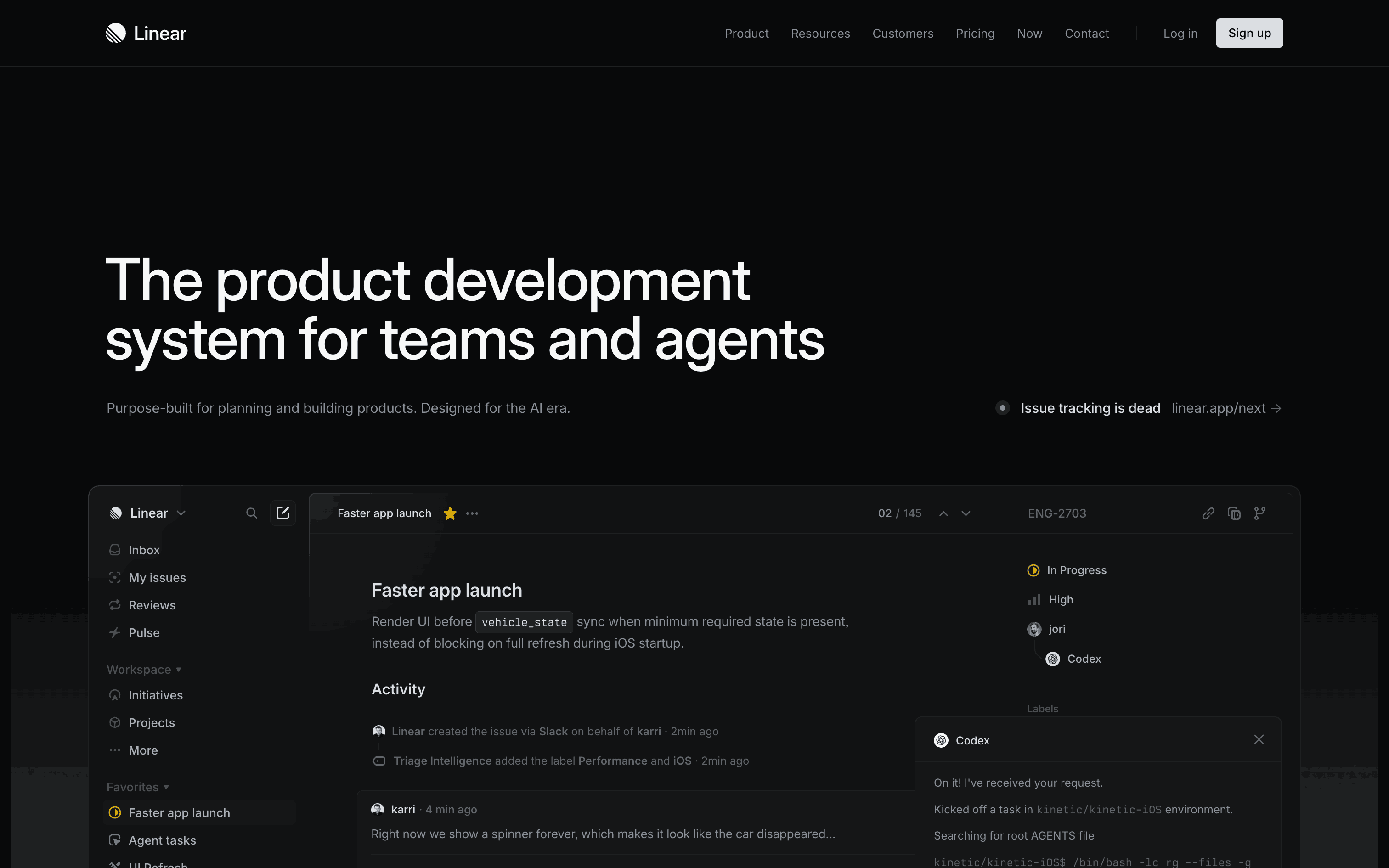
Apps using magic links as primary auth: Slack, Notion, Linear — all route users to magic link flows when the email domain indicates SSO is unavailable.
Design tip: Show a clear "Check your email" screen with the user's email address displayed, a "Resend" button (enabled after 30 seconds), and an "Open Gmail/Outlook" quick-action button to reduce friction.
Trend 4: OTP / Code-Based Login
Similar to magic links but using a 6-digit code sent via email or SMS. This approach is especially popular in regions with less reliable email and in industries (banking, healthcare) where SMS provides an additional verification layer.
Design tips for excellent OTP screens:
- Use individual input boxes for each digit — the visual affordance of separate boxes speeds up input compared to a single text field
- Support auto-fill from SMS — iOS has native support for OTP auto-fill with
textContentType = .oneTimeCode - Auto-submit when all digits are entered — don't make users tap "Verify"
- Show a clear countdown timer for code expiration (typically 5-10 minutes)
- Display a "Resend code" link that's disabled for 30 seconds to prevent accidental double-sends
Trend 5: Passkeys — The Future of No-Password Auth
Passkeys (FIDO2 / WebAuthn) represent the industry's unified push to eliminate passwords entirely. In 2026, all major platforms — Google, Apple, and Microsoft — support passkeys across devices and browsers.
How it works for the user:
- User taps "Sign in" → device biometric prompt appears (Face ID, fingerprint, or device PIN)
- Cryptographic key exchange authenticates the user behind the scenes
- No password typed, no OTP waited for, no email opened
Early adopters with good passkey UX: Google (across all properties), GitHub, Best Buy, Kayak, PayPal
Design tip for implementation: If supporting passkeys, show a clean "Sign in with Passkey" button alongside traditional options. Don't force passkeys as the only option — adoption is growing but not universal. The fallback path (email + password) should always be accessible.
The gradual migration pattern: Most apps are offering passkey creation during sign-in (not during sign-up) as a progressive upgrade: "Sign in faster next time — enable Passkey?"
Trend 6: Minimalist Form Design
The trend toward minimalism in login forms reached its peak expression in 2026. The best login forms are radically simple:
- Single-field step-through: Ask for email first on one screen, then show the password field on the next. This reduces visual complexity and allows the system to determine if the user has a passkey, magic link, or password before showing the relevant UI
- Floating labels that animate into position when the field is focused — combines placeholder text and label into one element
- Generous whitespace and large touch targets (minimum 48x48px on mobile per WCAG guidelines)
- Borderless inputs — underline-only or filled-background fields with no visible borders create a cleaner visual impression
The single-field pattern in detail: Apps like Slack and Linear ask for email first. Based on the email domain, they can route the user to SSO, magic link, or password — all dynamically. This is called identifier-first login and it's becoming the default for multi-auth apps.
Trend 7: Brand-Forward Login Screens
Some apps use the login screen as a brand moment — a chance to express personality through illustrations, animated backgrounds, or lifestyle photography. This is more common in consumer apps than B2B.
Notable examples:
- Headspace — calming gradient backgrounds with meditation illustrations that set the emotional tone before the user even logs in
- Strava — full-bleed action photography of runners and cyclists with the login form overlaid. The energy of the image motivates the user
- Spotify — bold, saturated color gradients that shift seasonally. The login screen feels like music
When to use brand-forward login:
- ✅ Consumer apps with strong visual identity
- ✅ Entertainment, lifestyle, and wellness apps
- ❌ B2B/productivity apps — keep it clean, fast, and professional
- ❌ Apps where users log in frequently — decoration becomes irritation after the 50th time
Trend 8: Error Prevention Over Error Handling
The smartest login screens in 2026 don't just handle errors gracefully — they prevent them from happening:
- Real-time email validation — highlight invalid formats (missing @, no domain) as the user types, before they submit
- Password strength meters on registration — visual feedback (color-coded bar) during password creation
- Inline error messages positioned next to the relevant field — never at the top of the page where users might miss them
- Smart autocomplete for email domains — after typing "john@g", suggest "gmail.com", "googlemail.com"
- "Show password" toggle is now mandatory UX — hidden passwords cause typing errors, especially on mobile keyboards
Login Screen Anti-Patterns to Avoid
These patterns are still common in 2026 — and they still hurt conversion:
❌ CAPTCHA on every login — frustrates legitimate users while bots solve them anyway. Use risk-based CAPTCHAs that only trigger on suspicious behavior
❌ Hiding the password field behind a "Show" toggle that's hard to find
❌ Requiring a username instead of email — nobody remembers usernames in 2026
❌ No "Remember Me" option — forcing re-auth on every visit punishes your most loyal users
❌ Desktop-optimized login on mobile — mobile-first is the only acceptable approach
❌ Disabling paste on password fields — this actively prevents password manager usage and degrades security
Browse Real Login Screen Designs
Want to study login patterns from hundreds of real apps? Browse our login screen collection on Gummble — filterable by platform, authentication method, and visual style.
Save the designs that inspire you to your collections for quick reference during your next project.
More inspiration: Onboarding screen designs · Checkout flow guide · Best Mobbin alternatives
Founder of Gummble. I build and maintain the Gummble catalog — UI screenshots and UX flows from 1,500+ real iOS, Android, and web apps — and write about the design patterns I see across them.
See these patterns in action
Browse 1,500+ apps across shipped iOS, Android, and web products.
Browse the Library →