Loading library…

Lose It! — Track calories and meals, set goals, and see progress over time
iOS★ 4.813 screens
Version
Platform
iOS
Rating
4.80
CategoryHealth & Fitness
Version
Screens13
13 screens
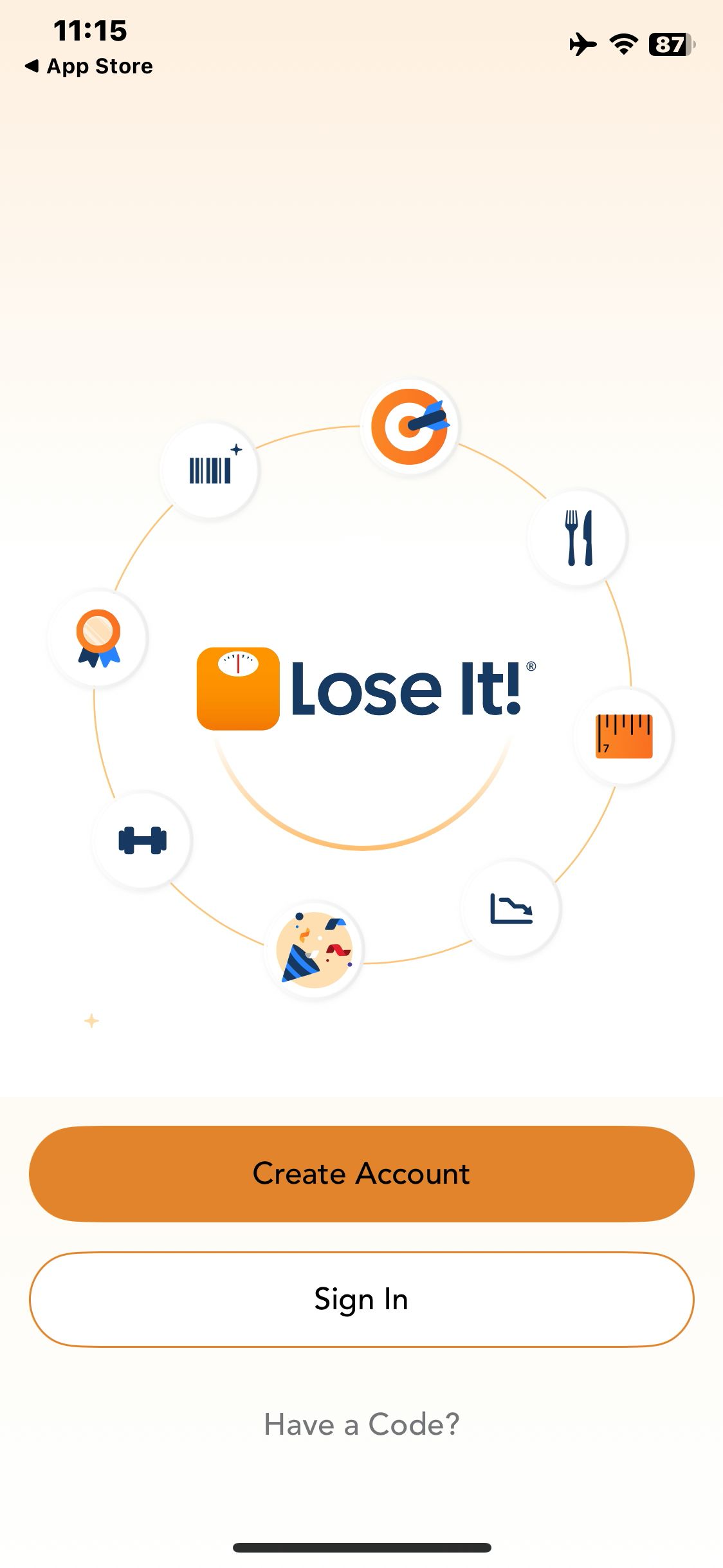

Lose It!
Open Lose It! and view the entry options
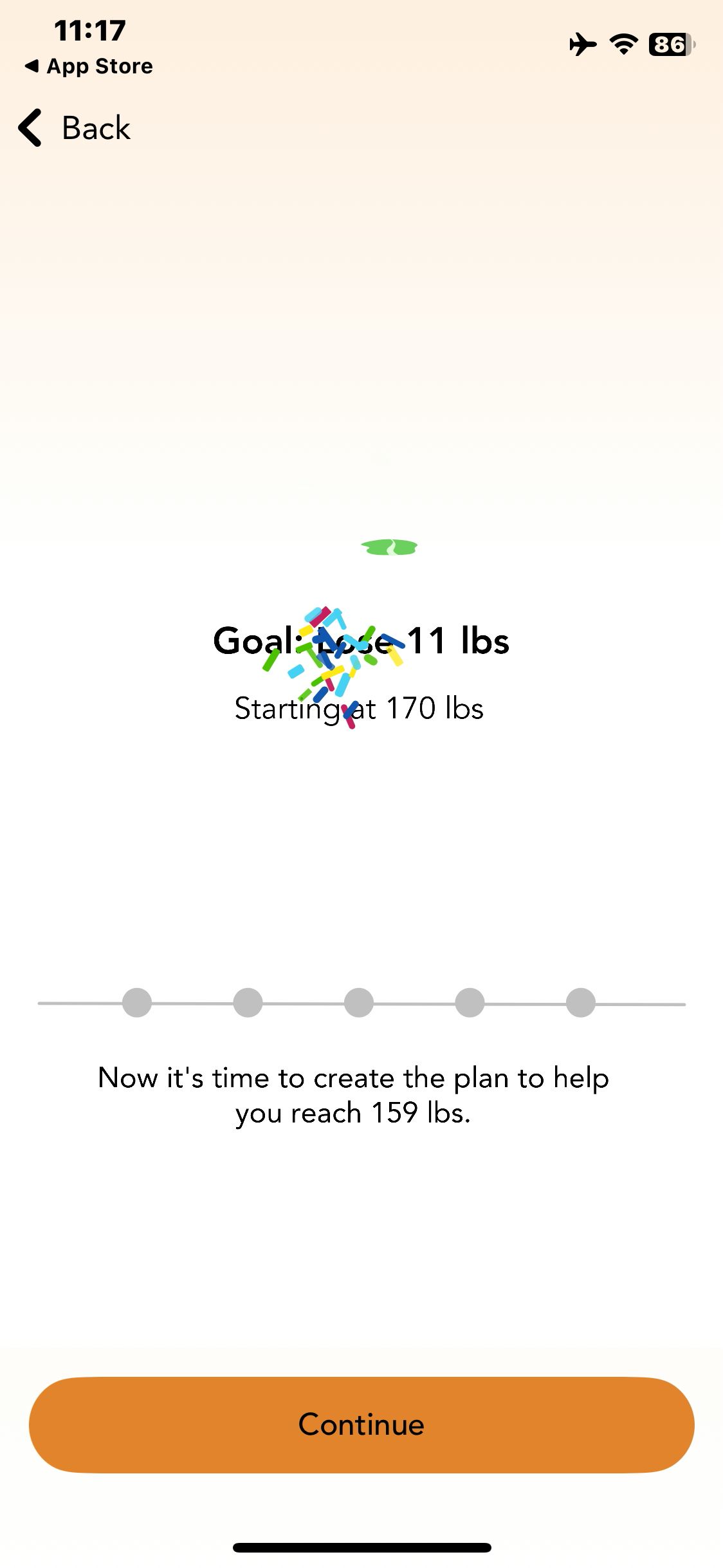
Lose It!
Confirm the sample weight goal and see the summary
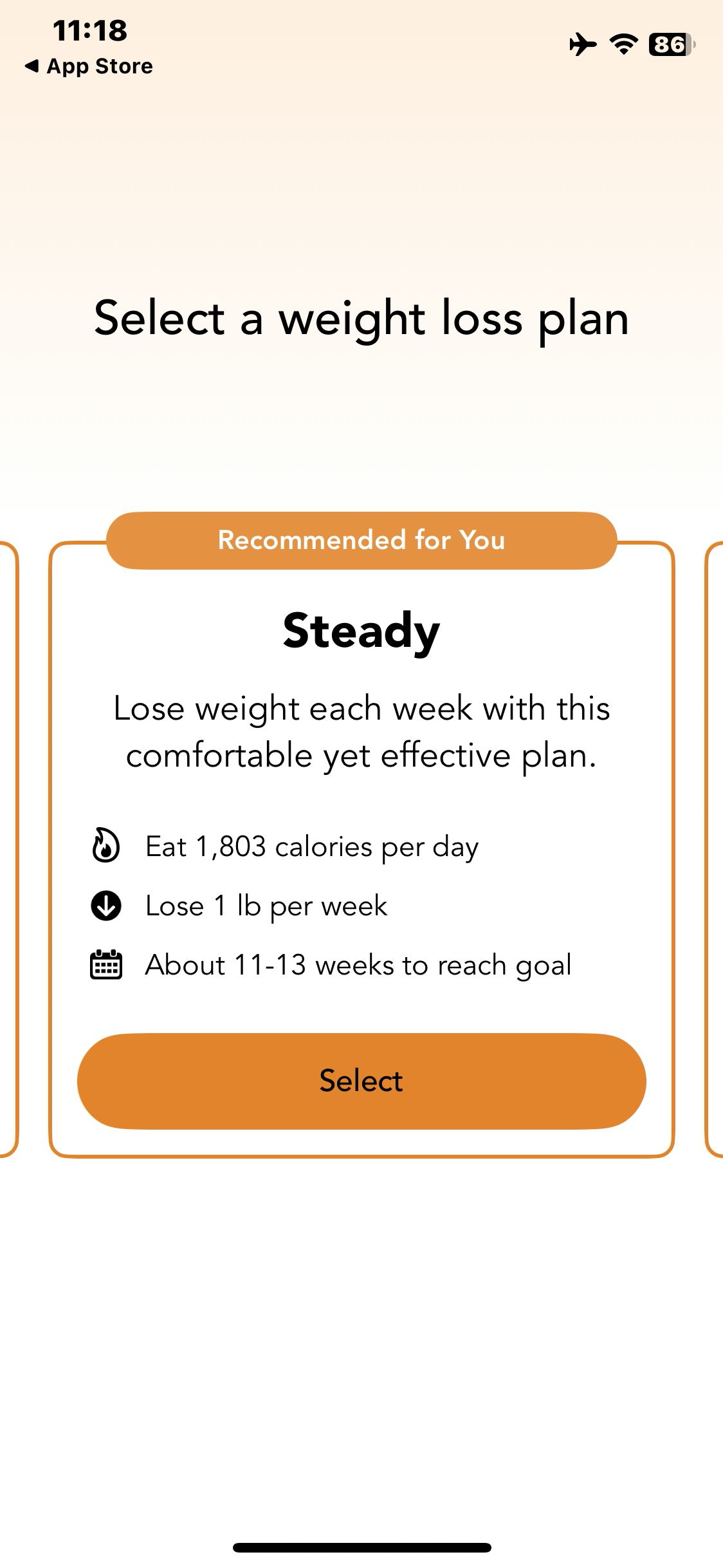
Lose It!
Open the weight-loss plan choices
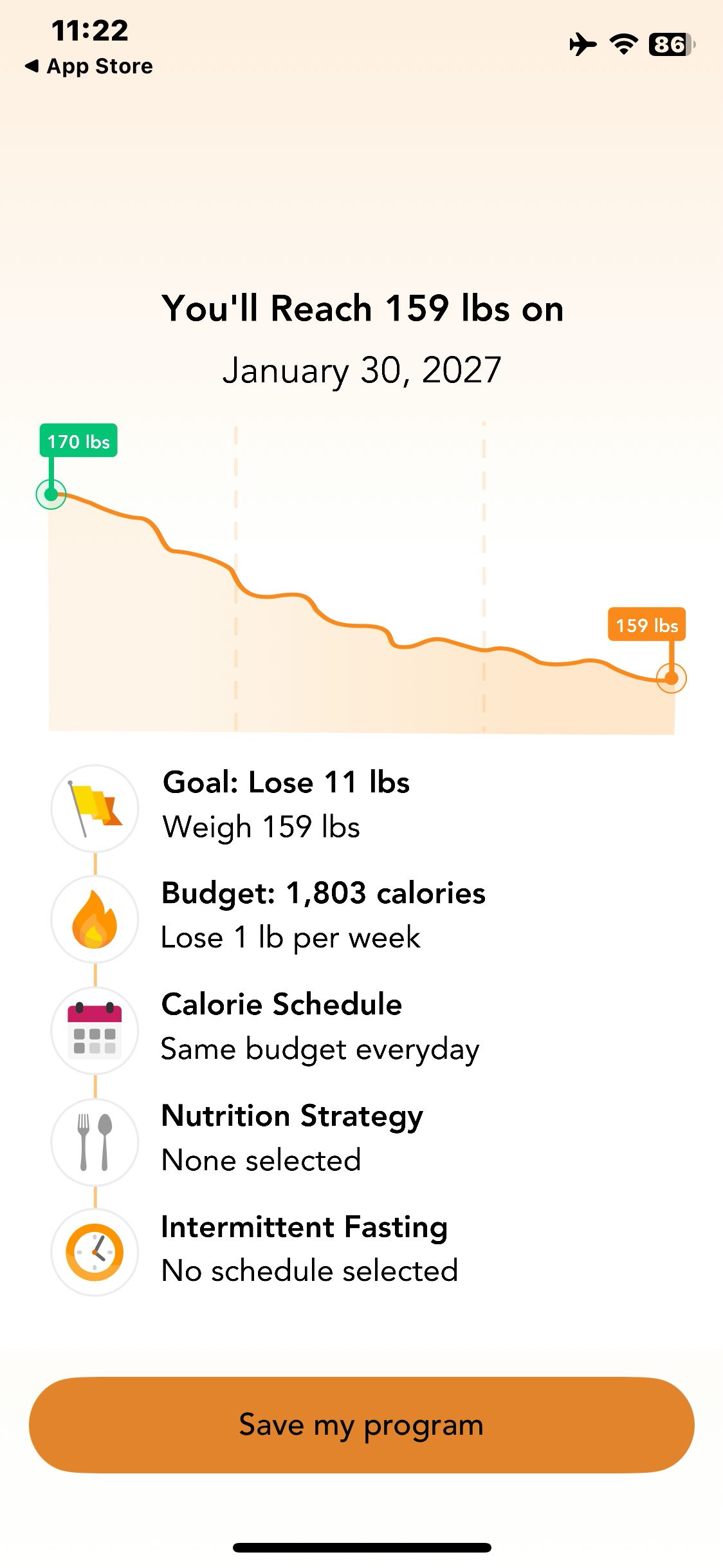
Lose It!
Generate the plan and verify the guest preview and sample projection
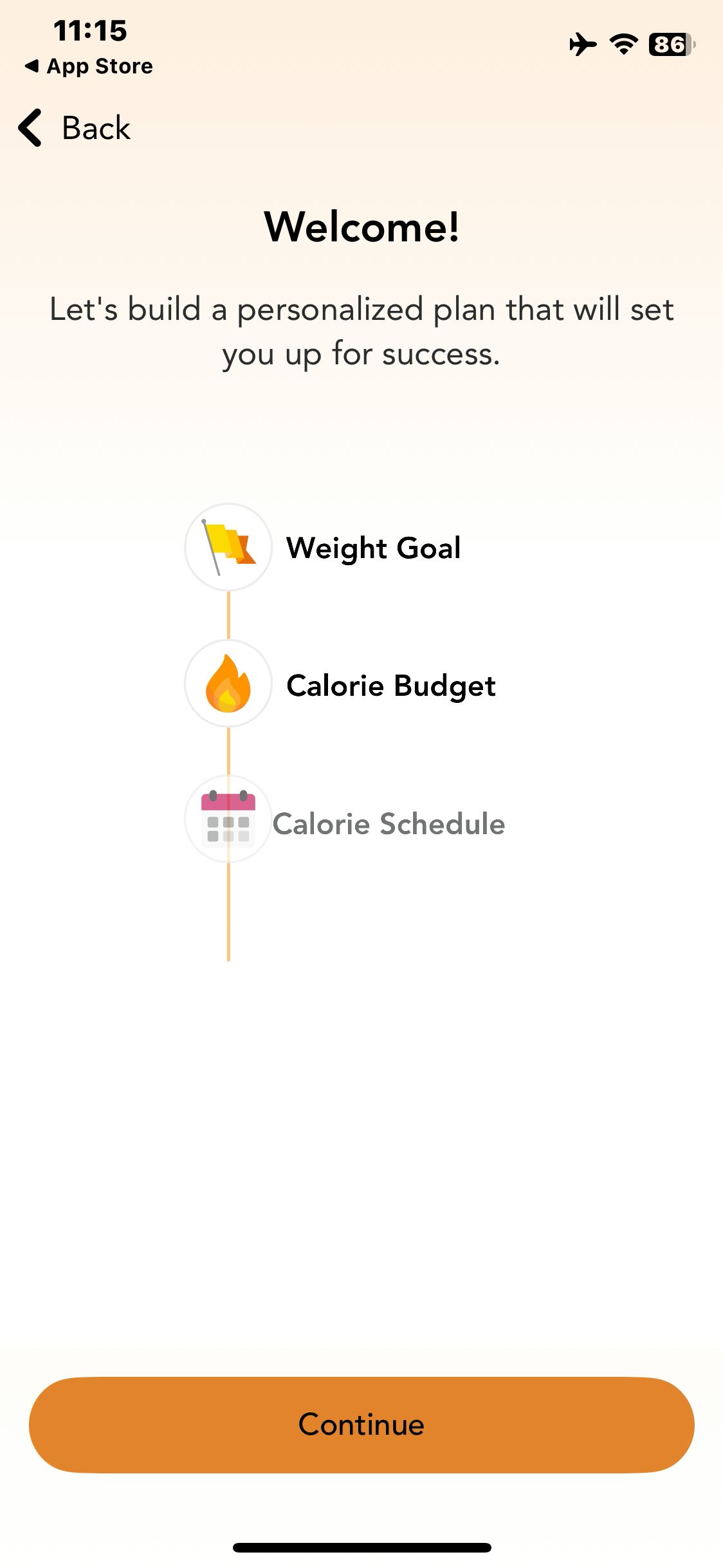
Lose It!
Begin onboarding and decline tracking
Paid screenUnlock with any plan
BROWSE
Lose It!
Continue to the primary goal question
Paid screenUnlock with any plan
BROWSE
Lose It!
Open the current-weight picker for the fictional profile
Paid screenUnlock with any plan
BROWSE
Lose It!
Open the goal-weight picker
Paid screenUnlock with any plan
BROWSE
Lose It!
Open the sample birthday picker
Paid screenUnlock with any plan
BROWSE
Lose It!
Choose Steady and view the app’s calorie budget for the sample profile
Paid screenUnlock with any plan
BROWSE
Lose It!
Open the calorie schedule options
Paid screenUnlock with any plan
BROWSE
Lose It!
Choose a consistent schedule and view its confirmation
Paid screenUnlock with any plan
BROWSE
Lose It!
View the optional fasting preferences
You've reached the end
Lose It! App UI/UX Design Analysis
Comprehensive UX & UI flow analysis of Lose It! (iOS): Calorie Counter, Barcode & Snap It Food Scanner, Intermittent Fasting, Macro Goals & Weight Loss Forecasting. Covers 6 end-to-end user journeys across 24 verified screens including Daily Calorie Budget Gauge & Net Week Balance, Barcode Scanner & Snap It Photo Food Logger, Weight Goal Projection Date & Milestone Badges, and Nutrition Patterns, Hydration & Intermittent Fasting.