How to Research Competitor App Design — A 5-Step Guide for Designers and PMs
Step-by-step guide to researching competitor app design. Learn the 5-step framework designers and PMs use to identify, screenshot, annotate, compare, and ship better UI decisions in 2026.

TL;DR — Competitor App Design Research in 5 Steps
The 5-step framework designers and PMs use:
- Identify 5-8 direct competitors + 3-5 best-in-class adjacent apps
- Screenshot key flows (onboarding, paywall, core feature, settings) — use Gummble or App Store
- Annotate what works and what doesn't on each screen
- Compare side-by-side in a single artifact (Figma, Notion, slide)
- Decide what to copy, what to skip, what to invent
Total time: 4-6 hours for a thorough competitive analysis. With Gummble Browse at $9.99/month, steps 1-3 can be faster because the screen and flow research is already organized.
Why competitor research matters
Most product teams spend too much time discussing "what should the X screen look like" without checking what already works. A 4-hour competitive scan often answers questions that would take 3 weeks of internal debate.
Three reasons it's worth doing:
- Faster decisions — concrete references beat abstract debate
- Better priors — see what's standard vs what's differentiating
- Easier stakeholder buy-in — "Notion does this" is more persuasive than "I think we should"
The mistake to avoid: copy-pasting without context. The framework below balances research speed with critical thinking.
Step 1 — Identify your competitive set
Build two lists:
Direct competitors (5-8 apps)
These are apps users compare you to. Examples:
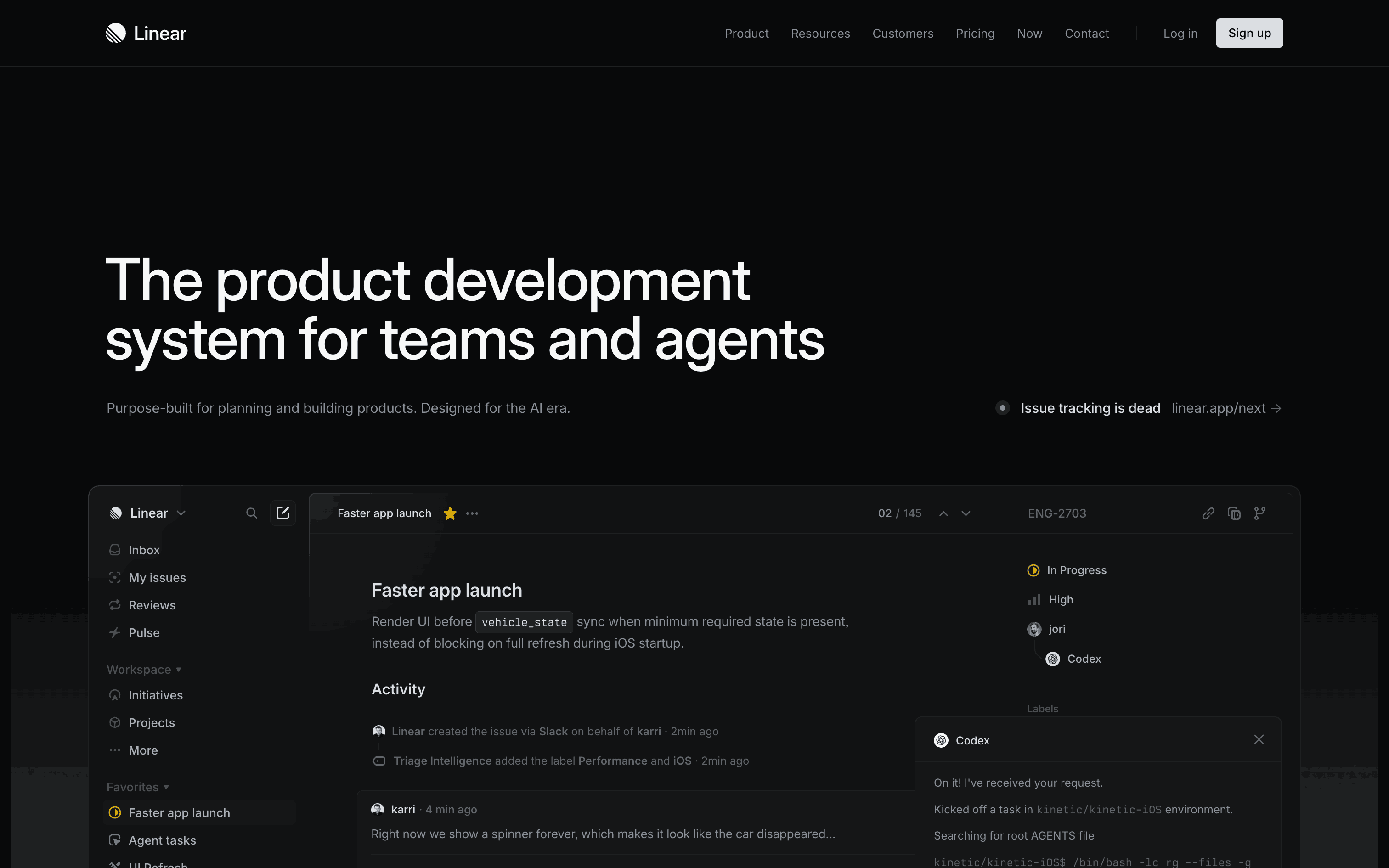
- Building a project management tool? Linear, Asana, Monday, ClickUp, Notion, Trello, Height, Shortcut.
- Building a habit tracker? Streaks, Habitify, Productive, Way of Life, Strides.
Adjacent best-in-class (3-5 apps)
These solve different problems but have UX patterns worth borrowing:
- Building a B2B SaaS? Borrow from Stripe, Linear, Vercel.
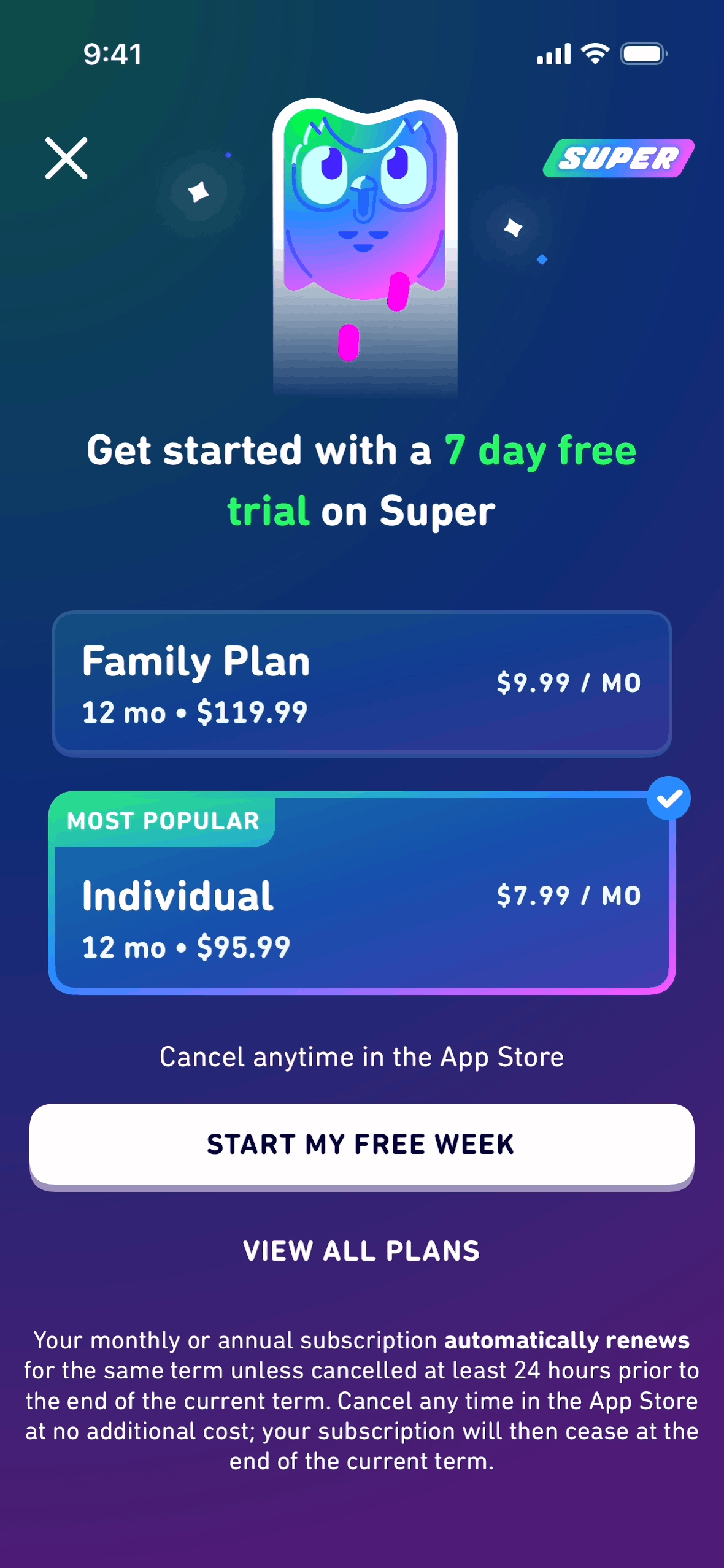
- Building a consumer app? Borrow from Duolingo, Headspace, Cash App.
Total set: 8-13 apps. More than that becomes overwhelming; fewer misses important patterns.
Step 2 — Screenshot the key flows
For each app, capture screens for 4-6 key moments:
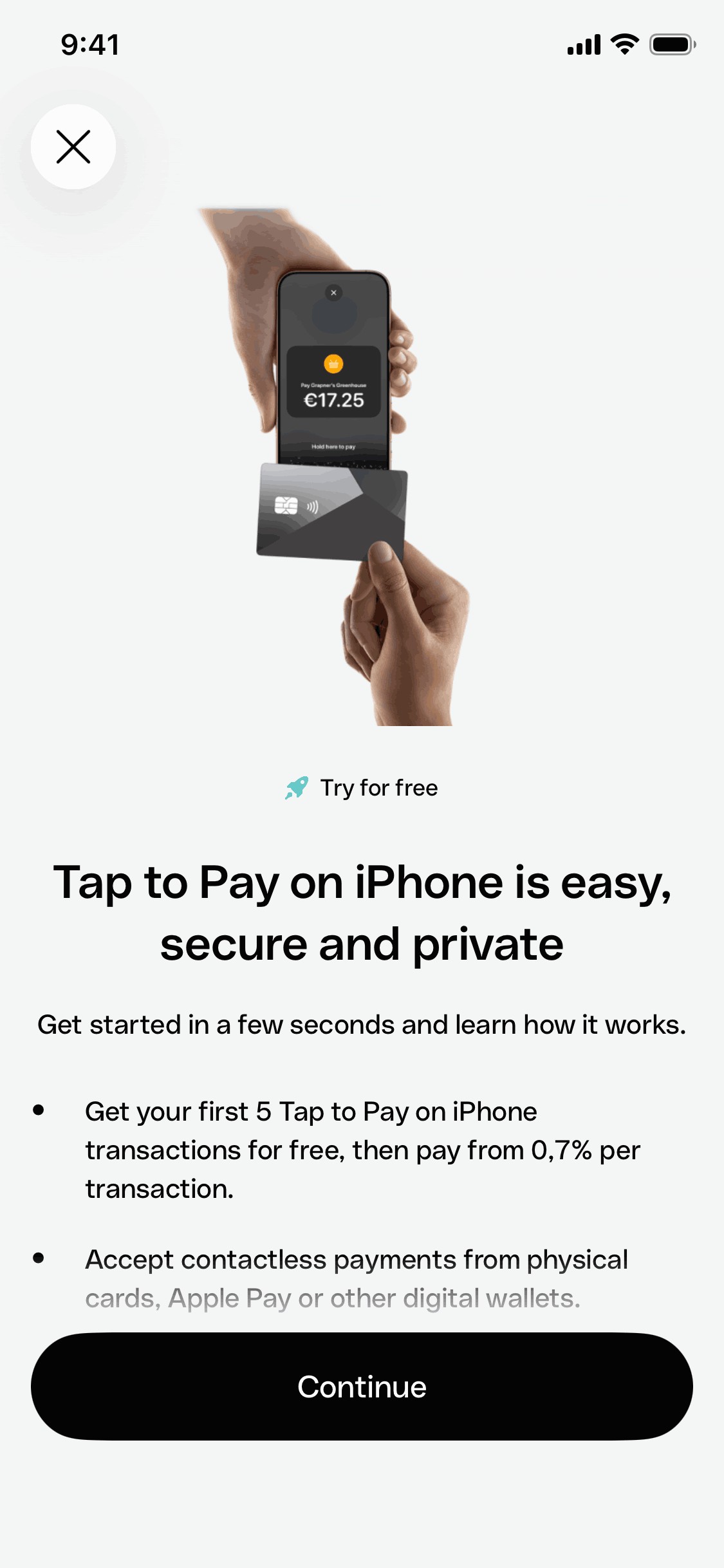
- Onboarding (first 5 screens after install)
- Core feature (main thing users do daily)
- Empty state (what new accounts see)
- Paywall / subscription (if applicable)
- Settings (reveals UX maturity)
- Edge cases (errors, offline, no-data)
Where to find screenshots fast
| Source | Speed | Cost |
|---|---|---|
| Gummble | Fastest — curated by app + flow | $9.99/mo or free tier |
| Mobbin | Fast — largest library | Check live pricing |
| App Store / Google Play | Slow — only 5-10 official screens | Free |
| Install + capture manually | Slowest — complete control | Free + time |
Pro tip: Use Gummble's UX flows for instant access to onboarding, paywall, and checkout flows from top apps. No manual capture needed for the most common reference categories.
For 13 apps × 5 flows × 5 screens each = 325 screenshots. At 1 minute per screen via App Store, that's ~5.5 hours. With Gummble or Mobbin's curated flows, it's under 60 minutes.
Step 3 — Annotate what works (and what doesn't)
For each screen, write 1-3 sentences about:
- What's working — element/decision worth borrowing
- What's not working — confusing or weak design choice
- What's unique — only this app does X
Tools for annotation:
- Figma frames with sticky notes (most flexible)
- Notion gallery view (fast for solo work)
- Loom video walkthrough (for sharing with team)
Do NOT skip this step. Screenshots without annotations are just art. The annotations are what teach.
Pro tip: Gummble's editorial showcases include pre-written annotations for select apps (Duolingo onboarding, Notion empty states, etc.) — saves 30+ minutes per app analyzed.
Step 4 — Compare side-by-side
Build one artifact that puts the same screen type from all apps in a single view:
- Onboarding screen 1 from all 13 apps in a row
- Empty state from all 13 apps in a row
- Paywall from all 13 apps in a row
This reveals:
- Industry conventions — what 80% of apps do (your default)
- Differentiators — what 1-2 apps do uniquely
- Anti-patterns — what 1-2 apps do that's actively bad
Recommended artifact format
A Figma file with 4-6 frames, each containing the same screen type from 8-13 apps, with annotations. Add a "What I'm copying / skipping / inventing" decision panel at the end.
This single artifact becomes your design brief.
Step 5 — Decide what to copy, skip, invent
For each pattern in your competitive scan:
- Copy patterns that 80%+ of competitors use (these are user expectations — fight them at your peril)
- Skip patterns that 1-2 weak competitors use (low signal)
- Invent when you have a specific user insight that contradicts industry default
The 80/15/5 rule: 80% of your design follows industry convention, 15% borrows from best-in-class adjacents, 5% invents new patterns where you have unique insight.
Most products fail because they invent too much (cognitive cost on users) or copy too much (no differentiation).
Common mistakes
1. Copying without understanding
Notion's hierarchical sidebar works because Notion's data model is hierarchical. Copying it for a flat-data app creates confusion. Always ask: why does this work for them?
2. Researching only direct competitors
Direct competitors converge on similar patterns over time. The best ideas come from adjacent best-in-class apps that solve different problems with better UX.
3. Capturing too many screenshots
325 screens is the upper bound. Don't go to 1,000 — diminishing returns past 8-13 apps. Better to deeply analyze 10 than skim 50.
4. Skipping annotations
A folder of screenshots is just art. Annotations are what convert research into decisions.
5. Doing it once and never updating
Competitor apps ship weekly. Re-run the scan every 6-12 months for active competitors.
Tools comparison for competitor research
| Need | Best tool | Why |
|---|---|---|
| Curated app screens by category | Gummble at $9.99/mo | Best price, editorial commentary |
| Massive app library | Mobbin | Broad catalog, including niche industries |
| Motion / video flows | Page Flows at $10/mo | Video-first, transitions |
| Free option | Gummble Free + App Store | Limited but workable |
| Annotation | Figma | Most flexible |
| Sharing with team | Loom or Notion | Easy walkthrough |
Time budget for full competitor research
Assuming 10 apps × 5 flows:
| Step | With Gummble Pro | Without (manual) |
|---|---|---|
| Identify 10 apps | 30 min | 30 min |
| Screenshot 250+ screens | 60 min | 4-5 hours |
| Annotate | 90 min | 90 min |
| Build comparison artifact | 60 min | 60 min |
| Decide + write brief | 45 min | 45 min |
| Total | ~4.5 hours | ~7-8 hours |
The Gummble subscription pays for itself in saved time on a single competitive scan.
FAQ
How often should I do competitor design research?
For active competitive markets: every 6 months. For slower-moving categories: every 12 months. Always before major redesign decisions.
How many competitors should I research?
8-13 apps total: 5-8 direct + 3-5 adjacent best-in-class. More gets overwhelming.
Can I do this research for free?
Yes — App Store screenshots + manual install + capture works. Takes 7-8 hours instead of 4-5 hours. Gummble's free tier covers the curated browsing layer for free.
What's the best tool for competitor app design research?
For most workflows: Gummble Browse at $9.99/month for curated screens, flows, downloads, and collections. For maximum library depth, compare Mobbin's live offer.
How do I share the research with my team?
Build one Figma file with 4-6 frames (one per screen type), annotated, with a decision panel at the end. This becomes the design brief.
What if my competitors aren't on Gummble or Mobbin?
For long-tail apps: install + capture manually, or check the App Store. Combine with Gummble for the well-known apps to cover both.
Bottom line
Competitor app design research takes 4-8 hours done well. The framework: identify 8-13 apps → screenshot 5-6 key flows each → annotate → compare side-by-side → decide what to copy/skip/invent.
The biggest time saver is using Gummble Browse at $9.99/month for curated flows instead of installing and capturing every competitor manually.
Try Gummble free → — browse curated apps and flows without signup.
Related:
Founder of Gummble. I build and maintain the Gummble catalog — UI screenshots and UX flows from 1,500+ real iOS, Android, and web apps — and write about the design patterns I see across them.
About Azura →See these patterns in action
Browse 1,500+ apps across shipped iOS, Android, and web products.
Browse the Library →