


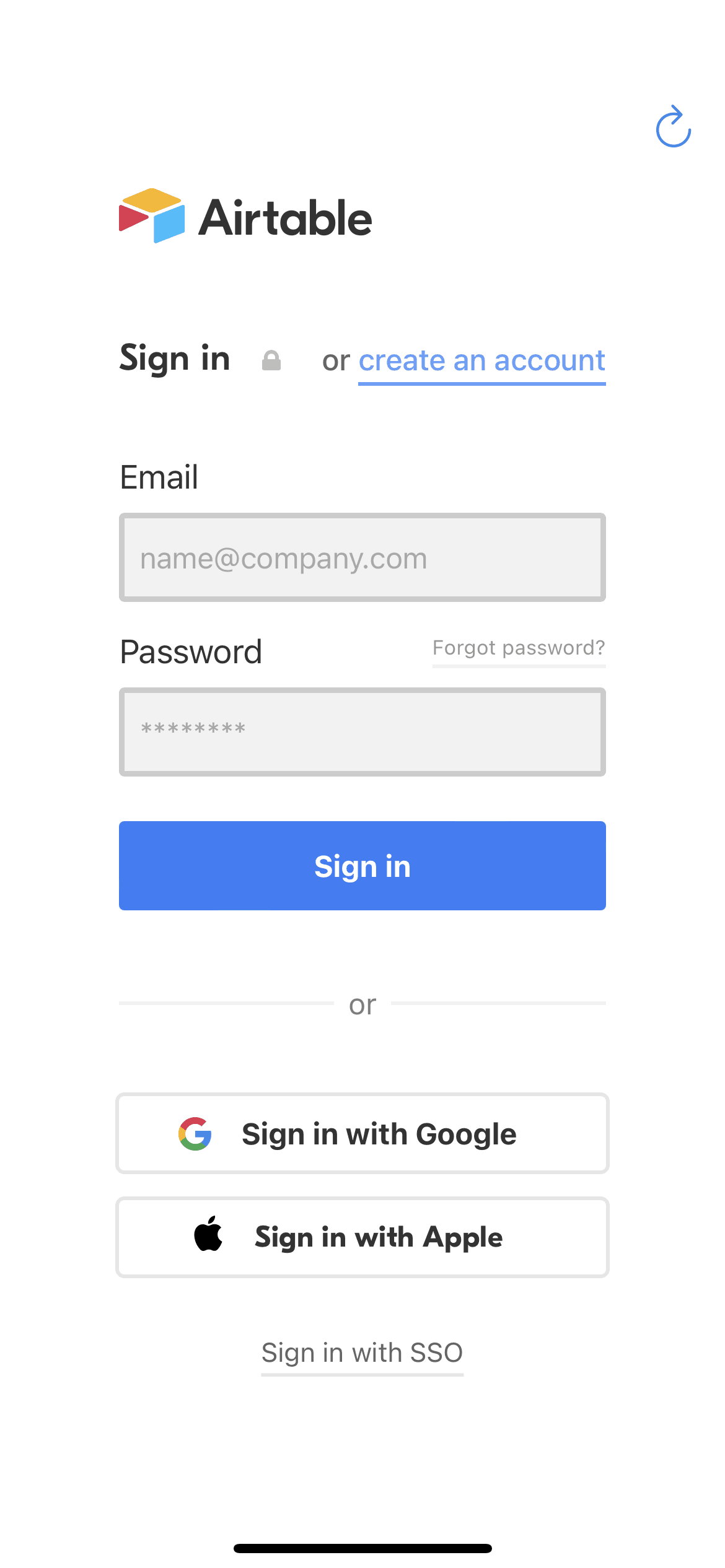
Airtable iOS Productivity interface screenshot 1
Airtable iOS Productivity interface screenshot 2
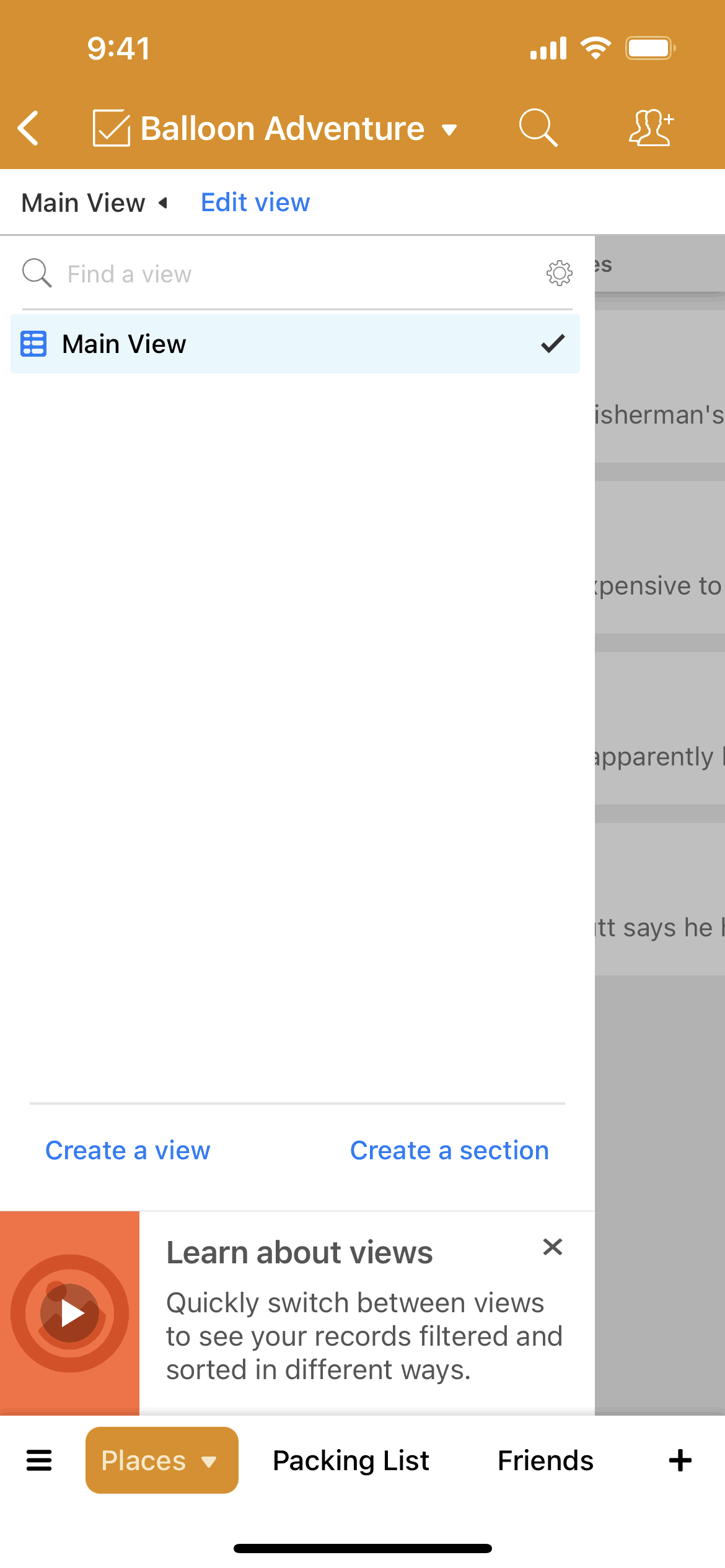
Airtable iOS Productivity interface screenshot 3
Airtable iOS Productivity interface screenshot 4

Airtable iOS Productivity interface screenshot 5
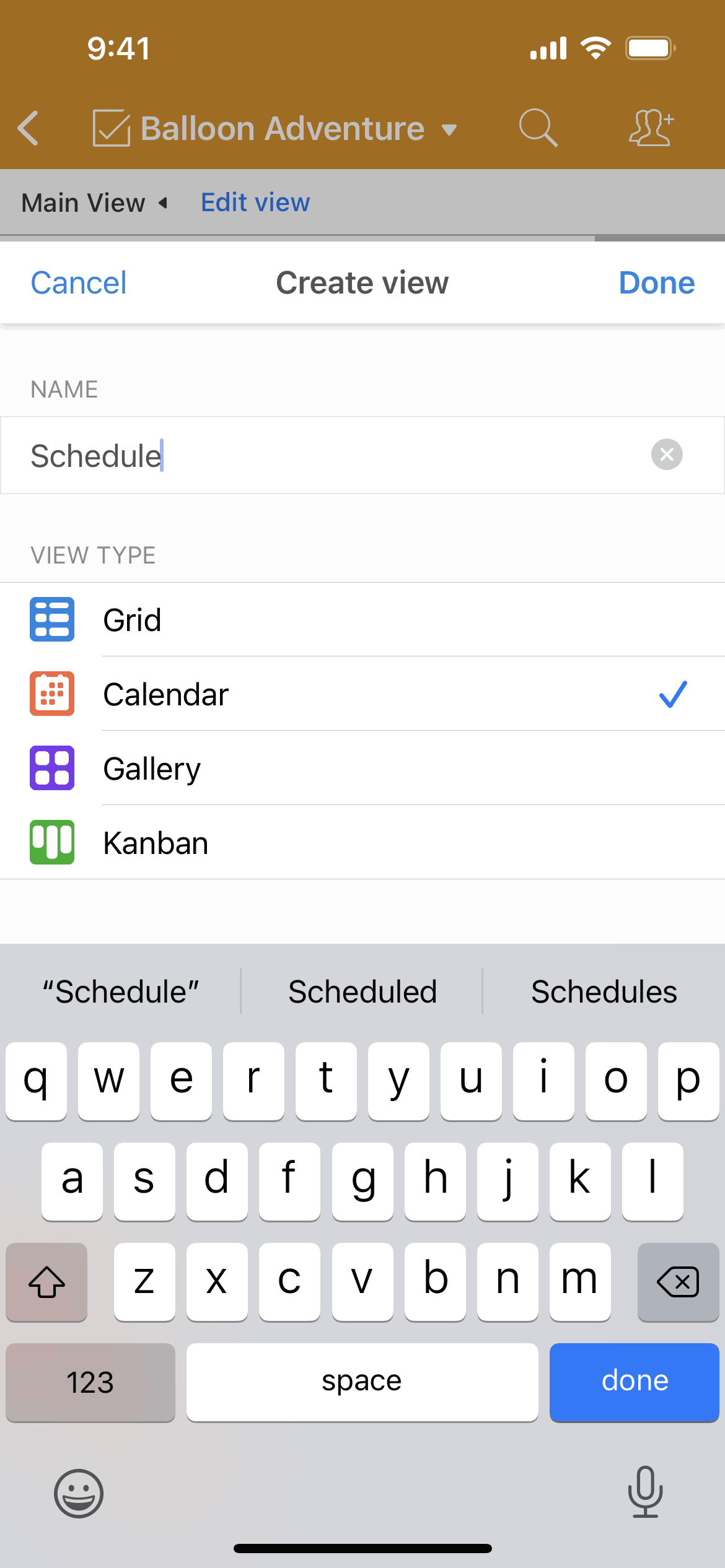
Airtable iOS Productivity interface screenshot 6
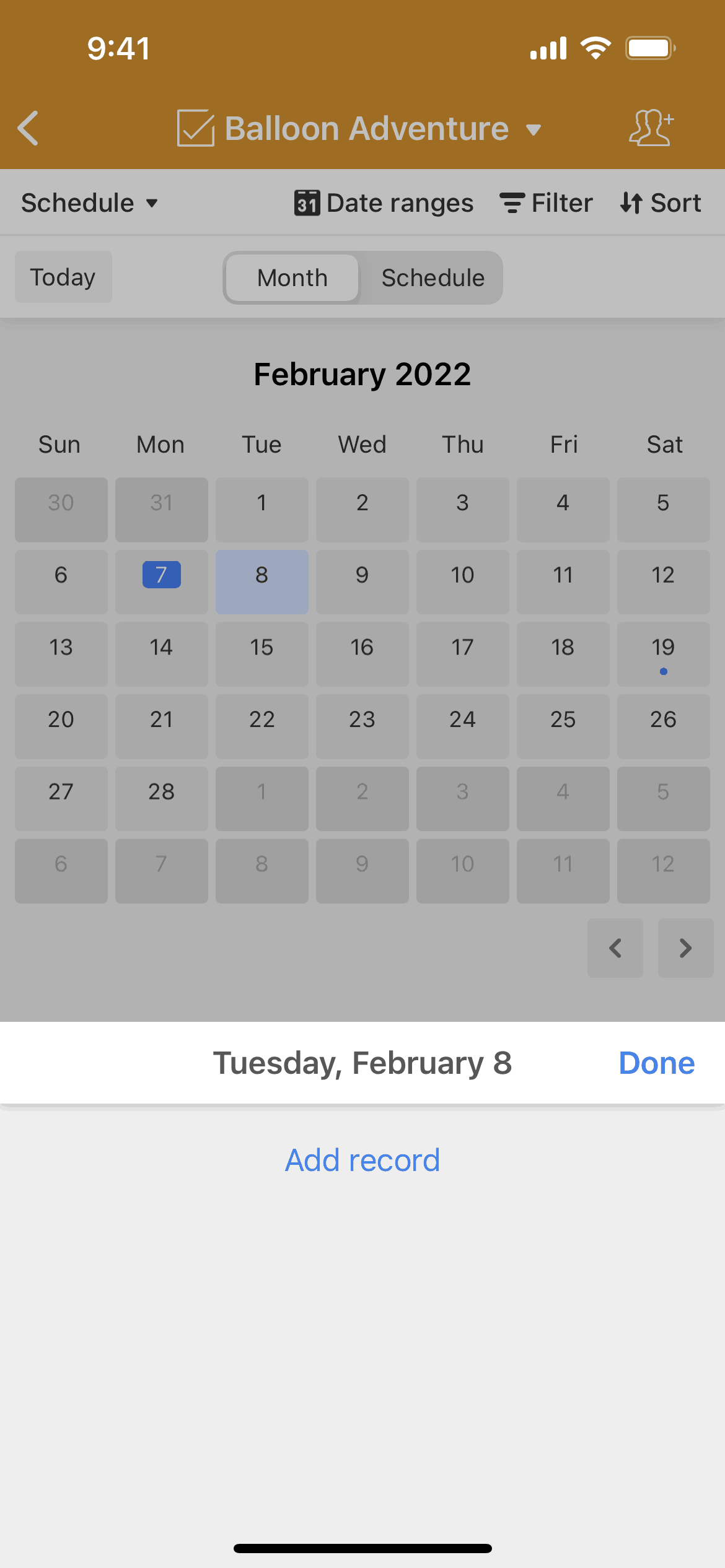
Airtable iOS Productivity interface screenshot 7
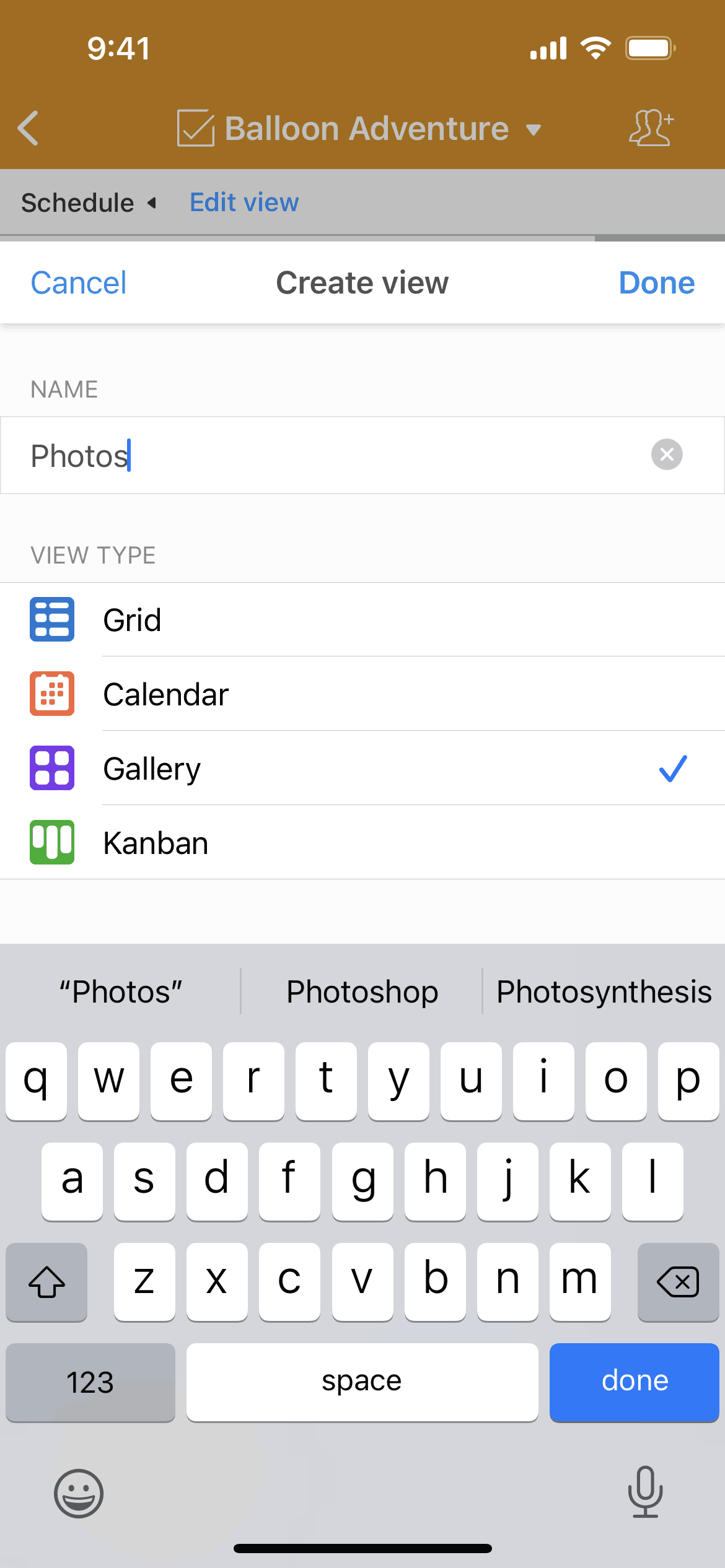
Airtable iOS Productivity interface screenshot 8
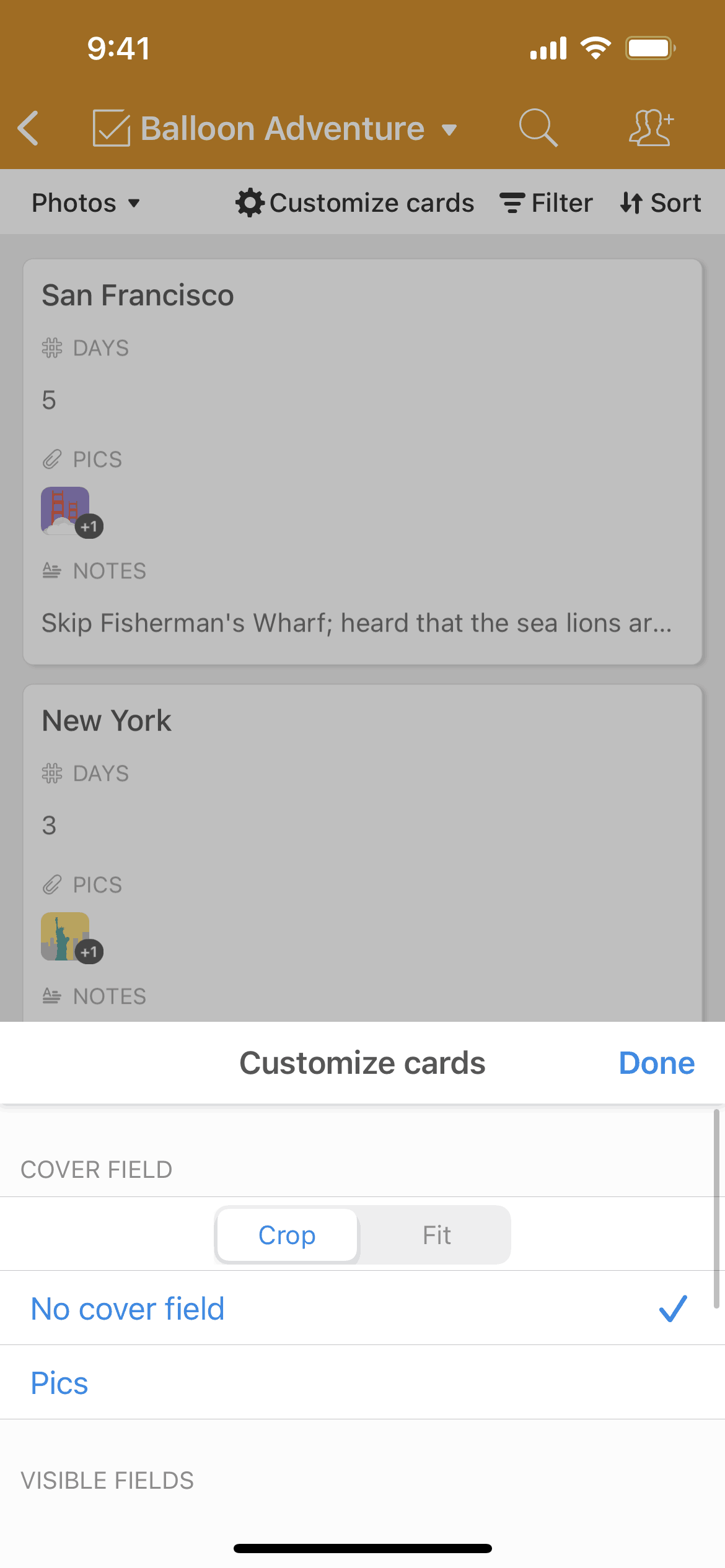
Airtable iOS Productivity interface screenshot 9
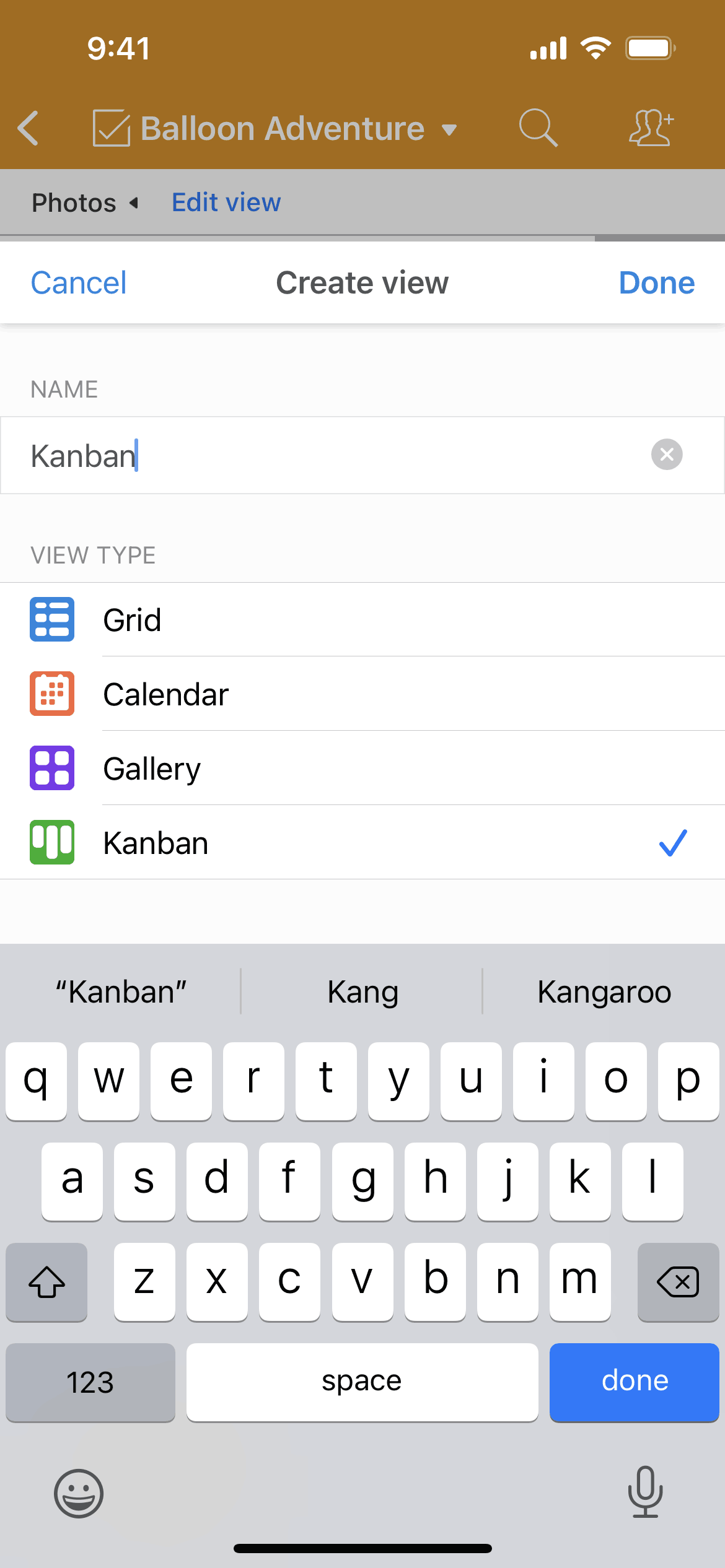
Airtable iOS Productivity interface screenshot 10
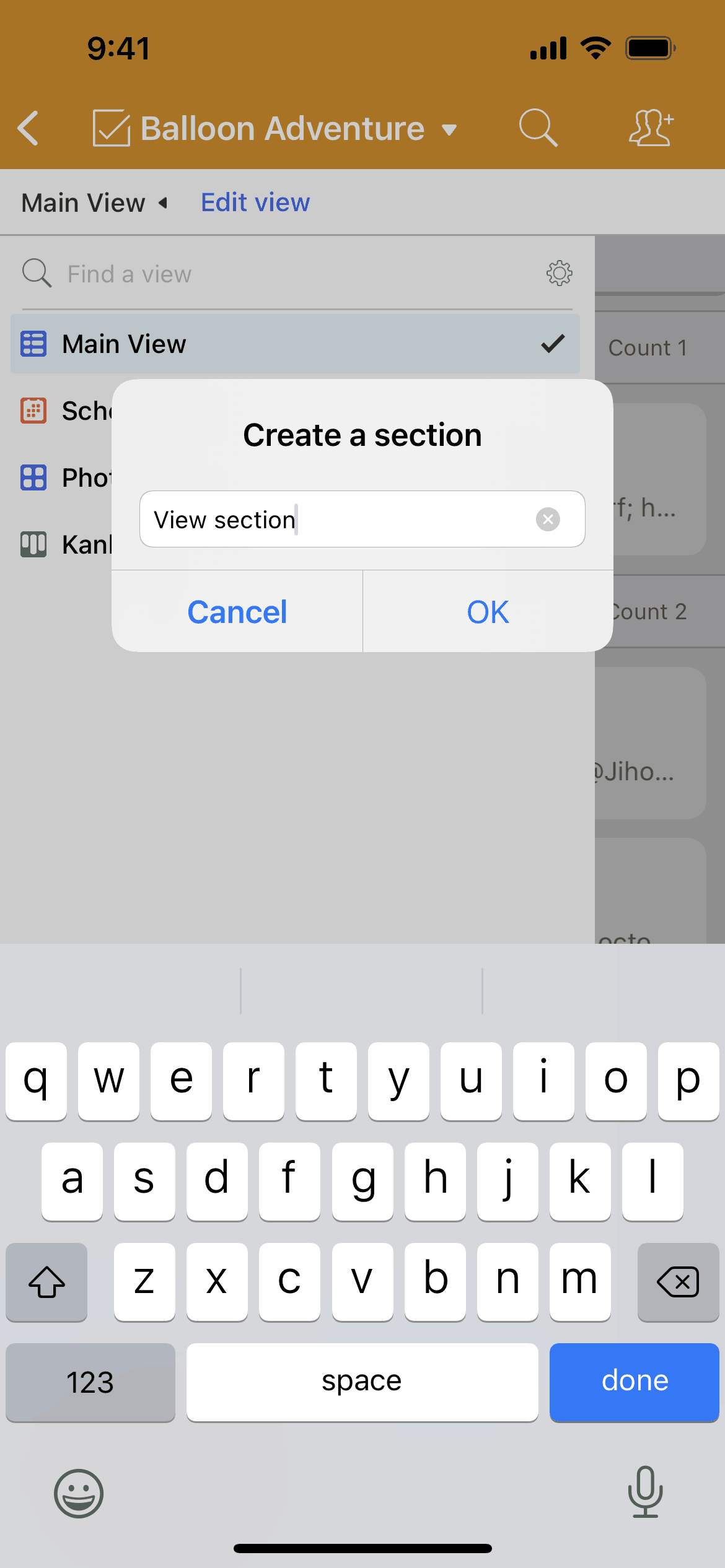
Airtable iOS Productivity interface screenshot 11
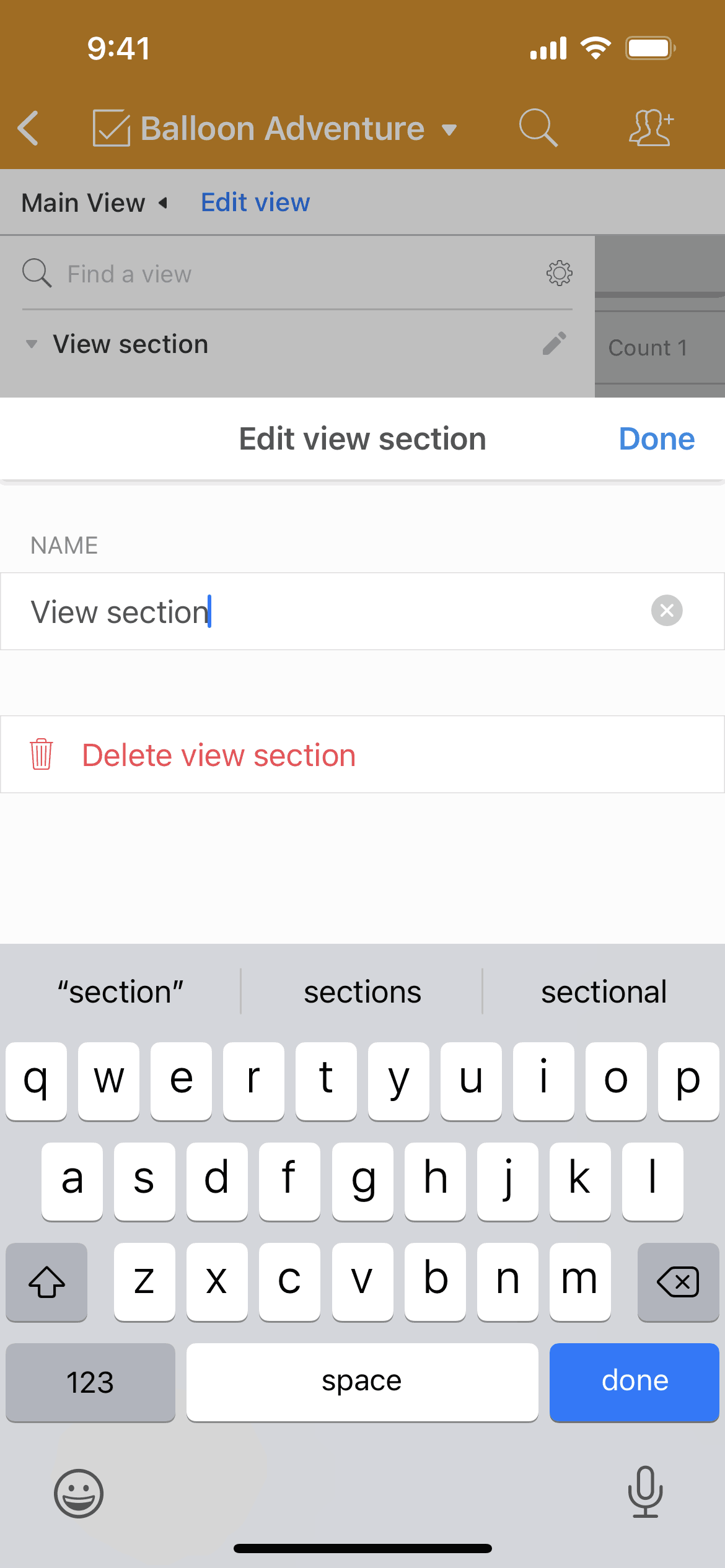
Airtable iOS Productivity interface screenshot 12
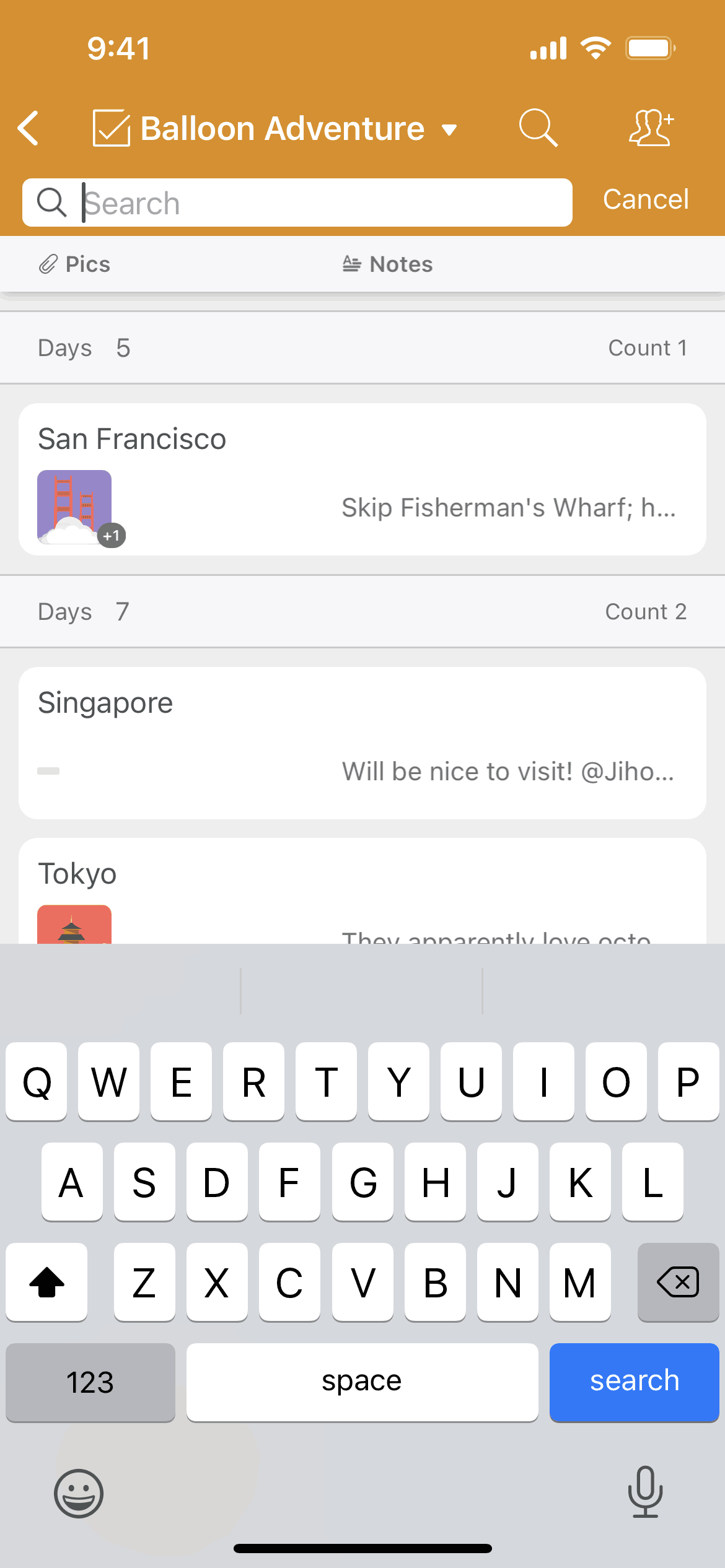
Airtable iOS Productivity interface screenshot 13
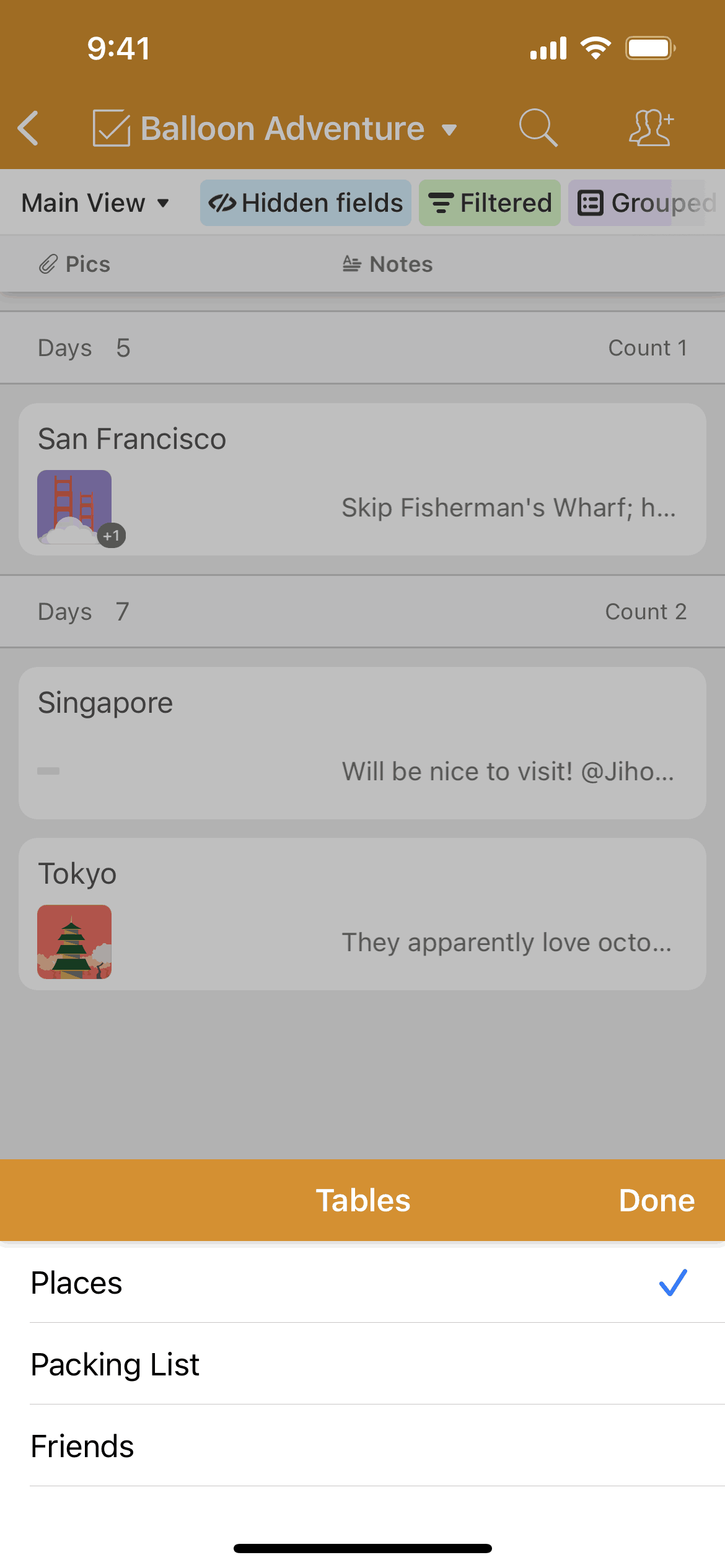
Airtable iOS Productivity interface screenshot 14
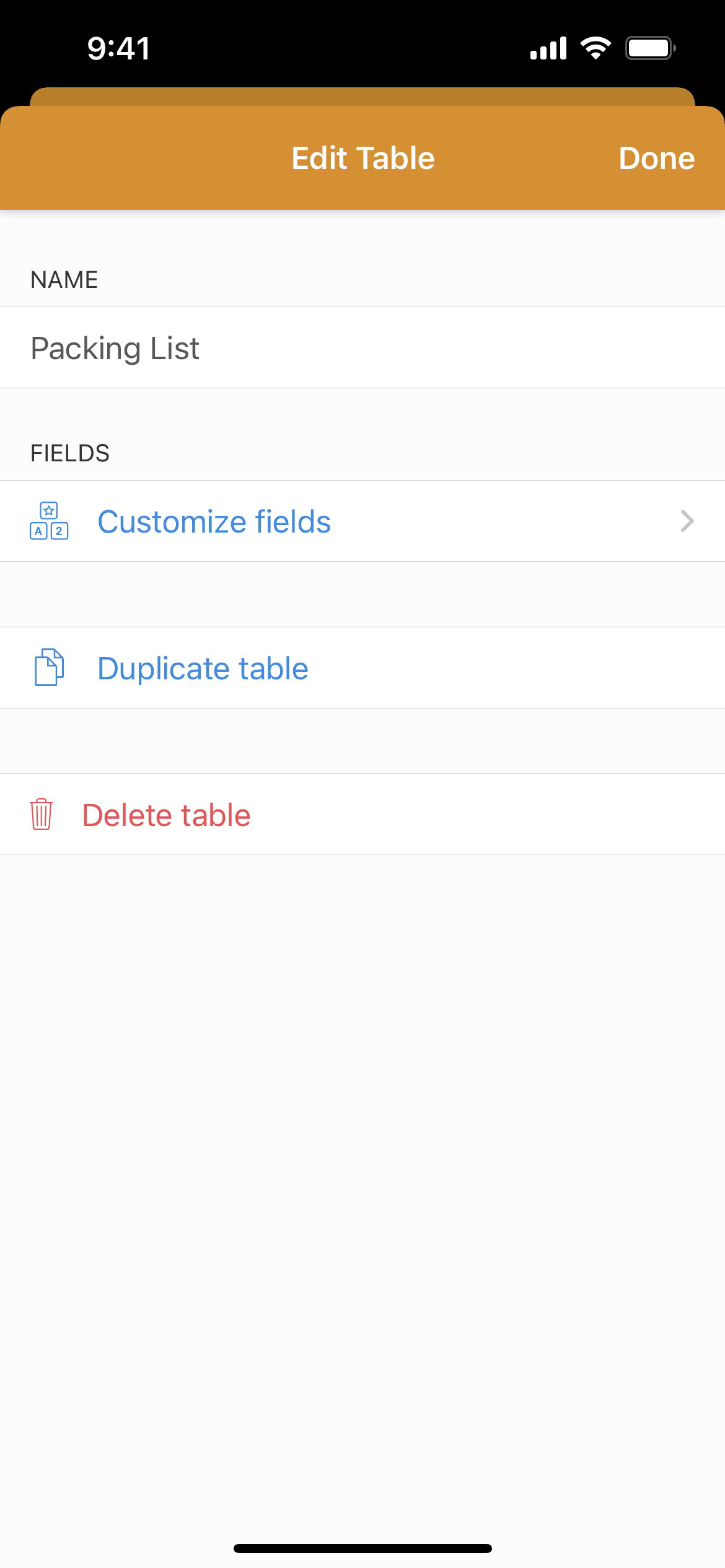
Airtable iOS Productivity interface screenshot 15
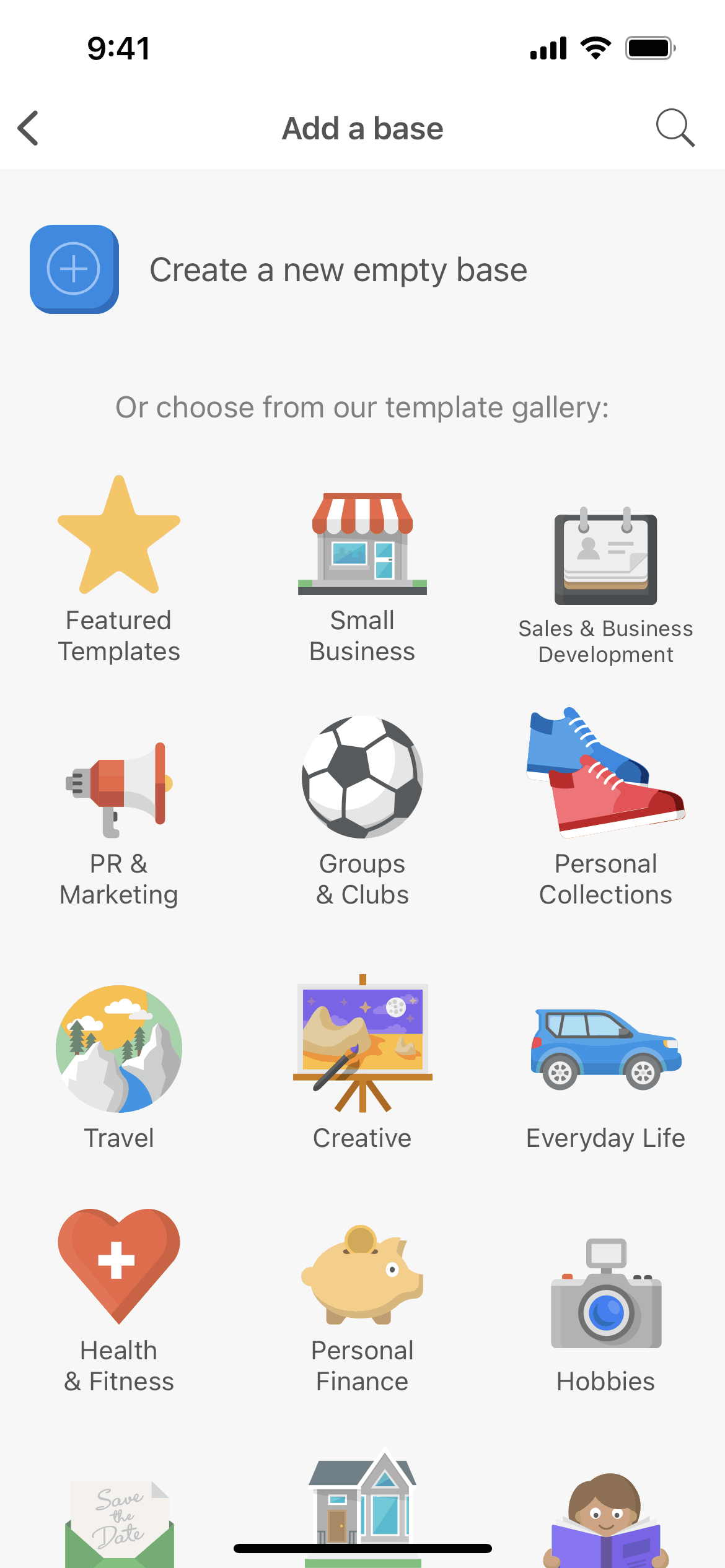
Airtable iOS Productivity interface screenshot 16
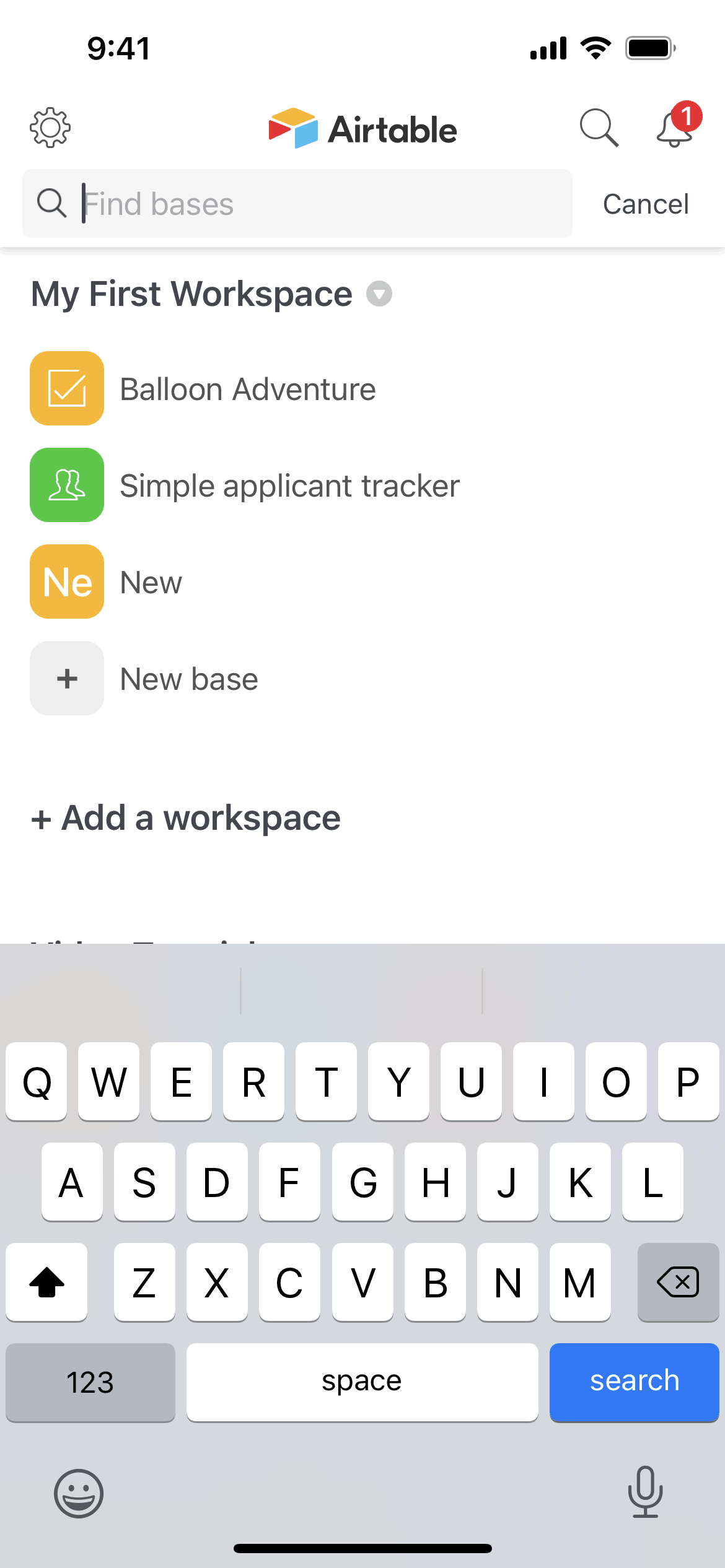
Airtable iOS Productivity interface screenshot 17

Airtable iOS Productivity interface screenshot 18
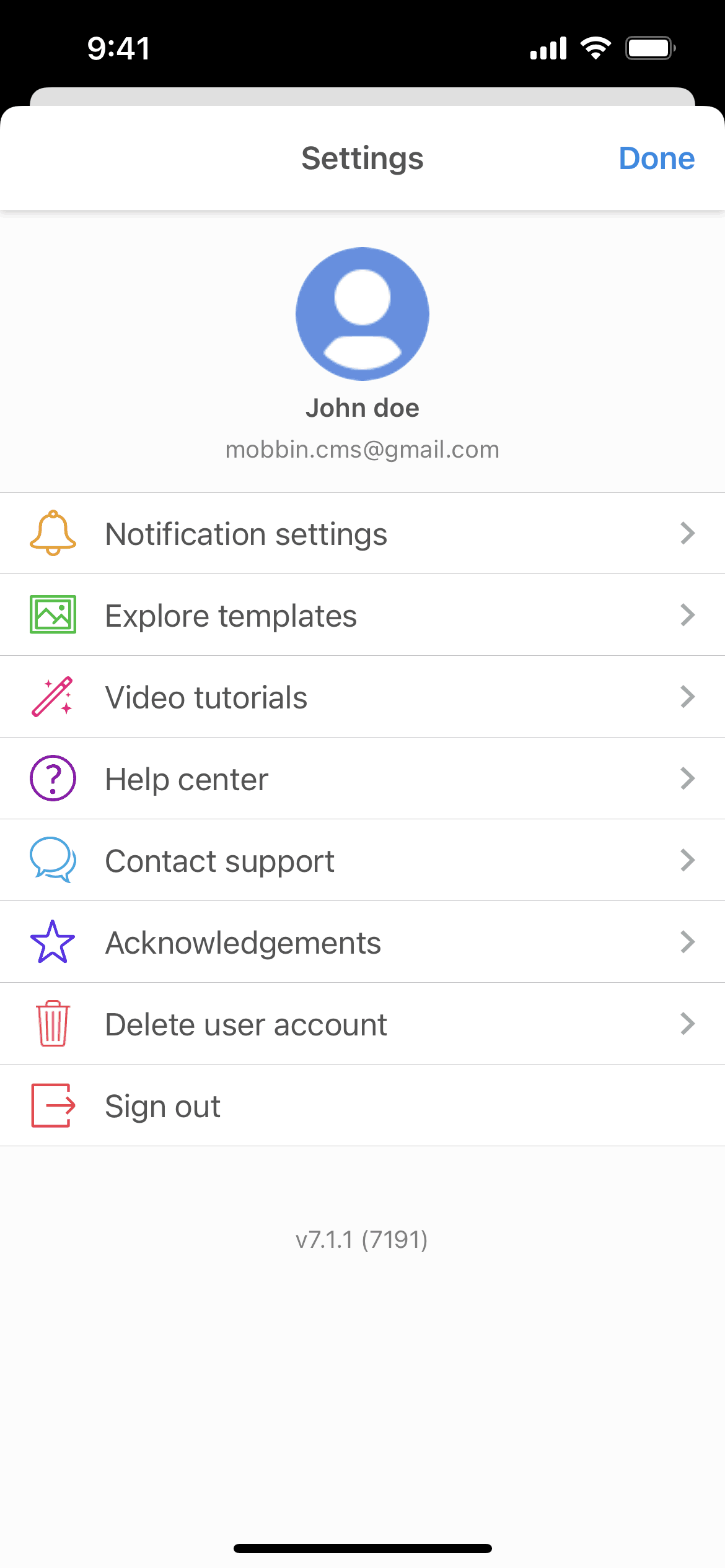
Airtable iOS Productivity interface screenshot 19
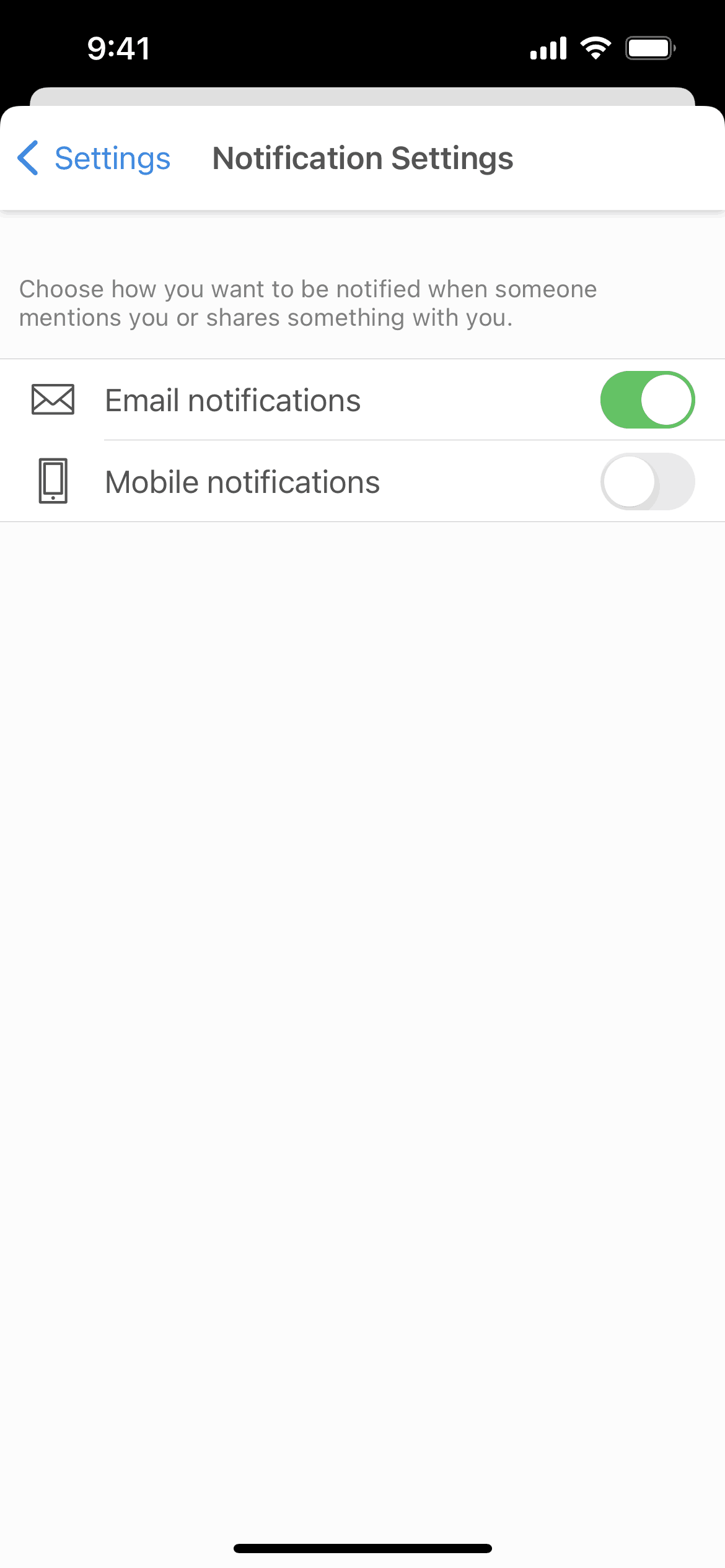
Airtable iOS Productivity interface screenshot 20
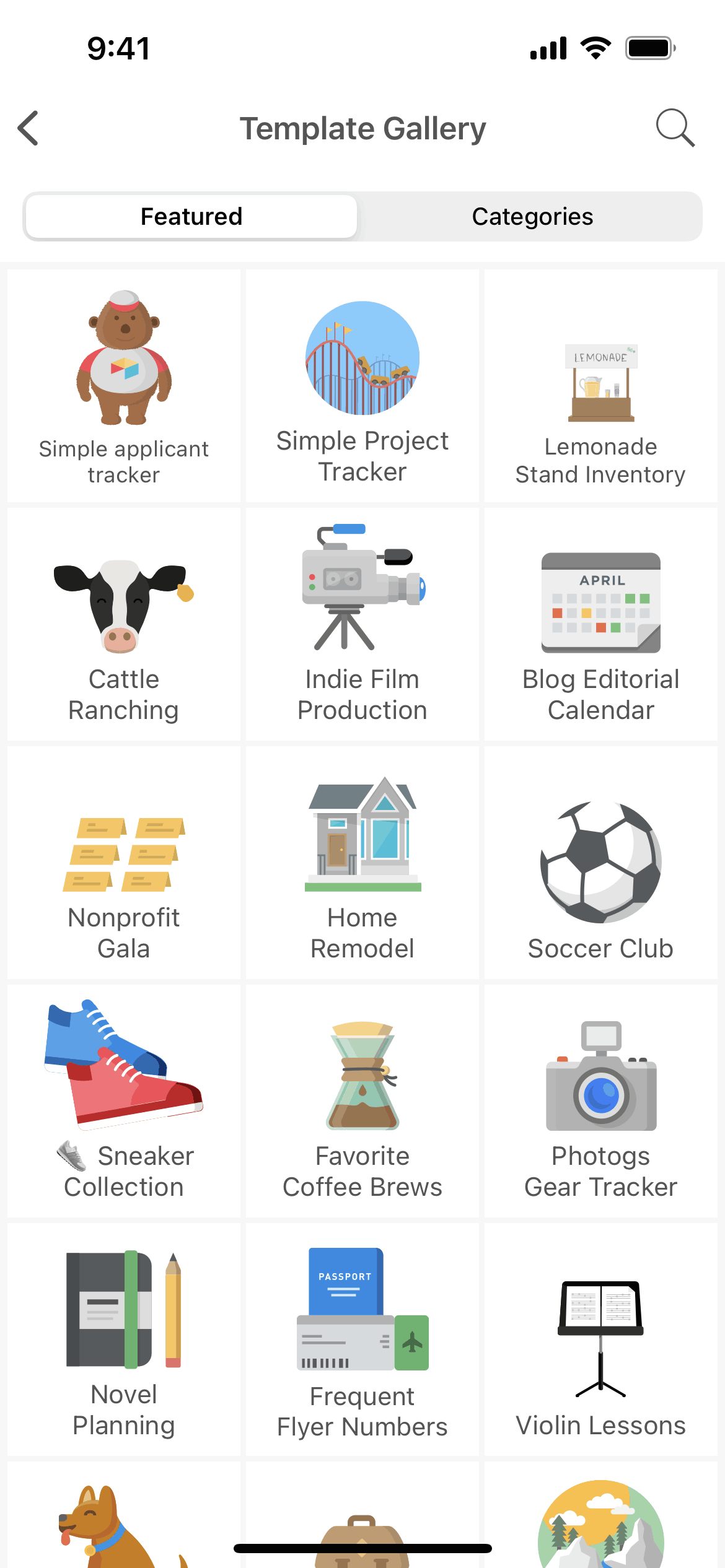
Airtable iOS Productivity interface screenshot 21
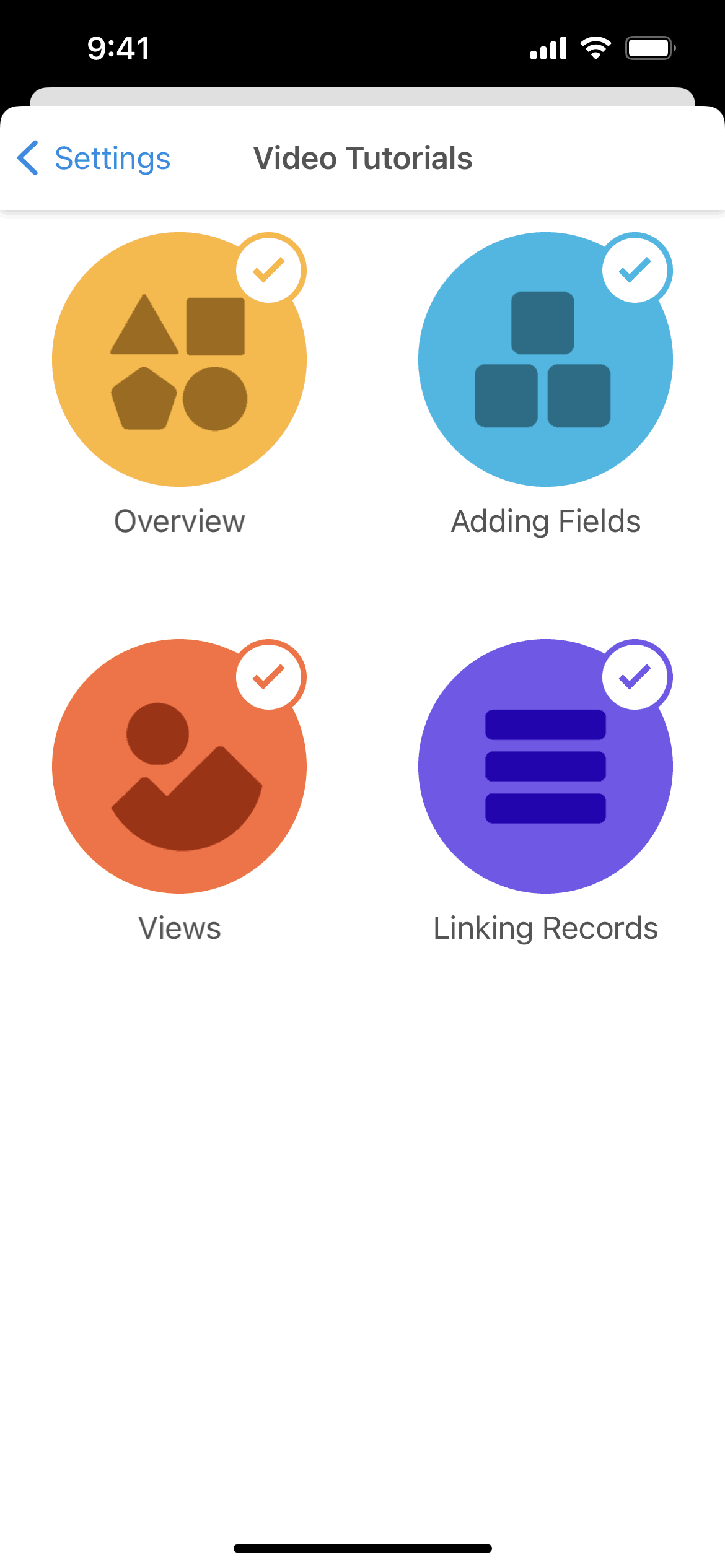
Airtable iOS Productivity interface screenshot 22

Airtable iOS Productivity interface screenshot 23
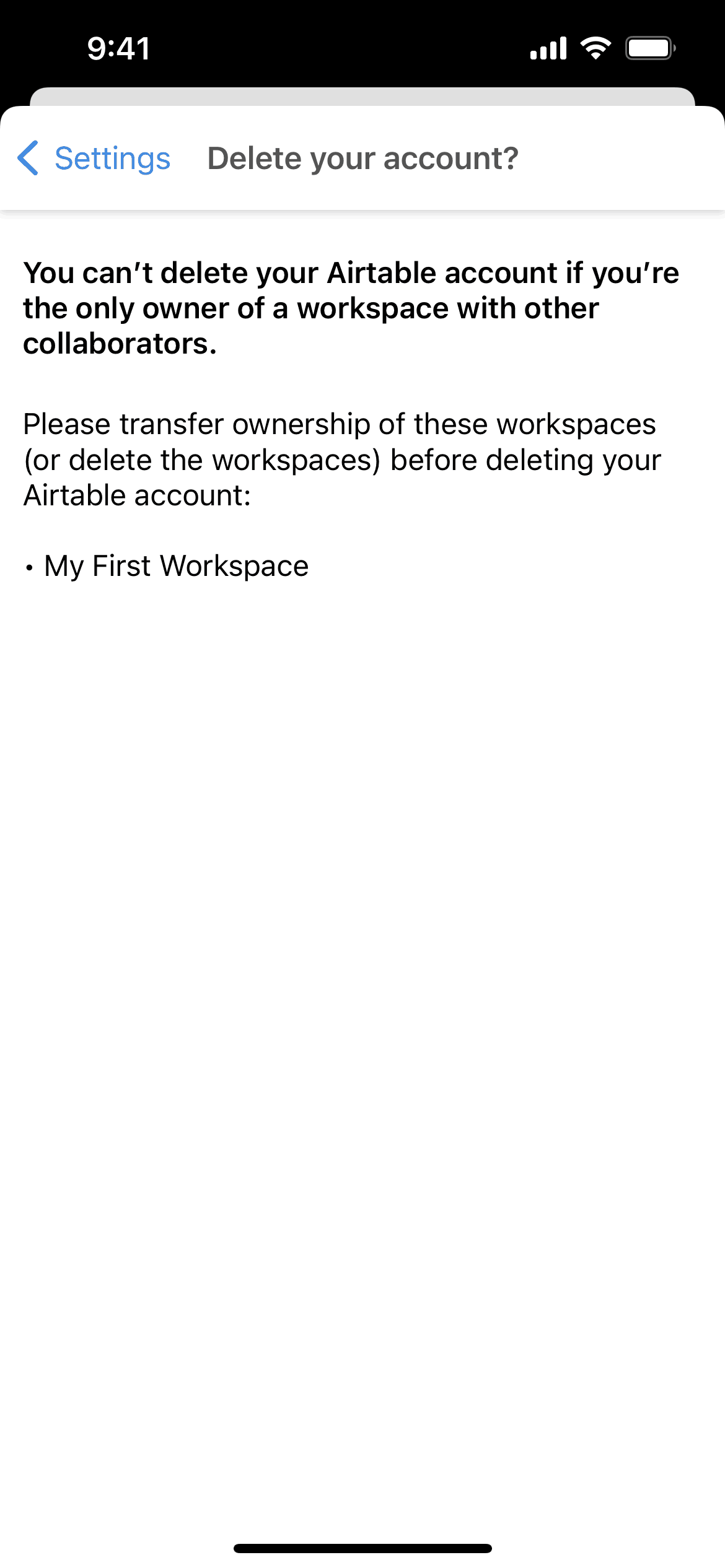
Airtable iOS Productivity interface screenshot 24
Gummble currently indexes 157 Airtable iOS screens captured Feb 7, 2022 and 9 captured UX flows including onboarding, login, and settings. AI app building for enterprise. Categorized under Productivity, CRM. Step through each captured Airtable flow screen by screen, or study individual screens for navigation, layout, and microcopy patterns.
Editorial teardown
Airtable is a collaborative database that combines the familiarity of spreadsheets with database structure and multiple views. The iOS app lets users access, create, and modify records across projects ranging from CRM to inventory to content calendars. What differentiates Airtable is view flexibility — the same data appears as grid, calendar, kanban, gallery, or timeline depending on the task. Teams use Airtable to build custom workflows without developers.
Read the full Airtable UX teardownGummble currently indexes 157 Airtable iOS screens captured Feb 7, 2022 and 9 captured UX flows including onboarding, login, and settings. Browse the gallery to study Airtable's interface patterns and design decisions.
Airtable is categorized under Productivity, CRM. Gummble holds 9 captured UX flows including onboarding, login, and settings for Airtable iOS. Open the Flows tab to step through each captured sequence screen by screen.
Yes. Gummble Browse, Pro, and Team users can download Airtable iOS screenshots for design reference. Free users can browse a limited selection and view design analysis.